
Introduction to Voixo AI Calling Platform
Welcome to Voixo AI Calling, the next-generation conversational AI platform that revolutionizes how businesses handle voice communications. Our comprehensive solution seamlessly integrates cutting-edge artificial intelligence with enterprise-grade telephony infrastructure to deliver human-like conversations at scale. Whether you're managing customer support, conducting sales outreach, or automating appointment scheduling, Voixo transforms traditional phone interactions into intelligent, efficient, and personalized experiences.
AI-Powered Voice Communication, Built for Enterprise Scale
Experience the future of business communications with our advanced AI agents that understand context, maintain conversation flow, and deliver consistent results across thousands of simultaneous calls.
Platform Architecture Overview
Voixo AI Calling represents a sophisticated convergence of multiple technologies working in perfect harmony. Our platform architecture is built on four foundational pillars that ensure reliability, scalability, and exceptional performance. Each component has been carefully selected and optimized to work together, creating a seamless experience from the moment a call is initiated to its completion.
The platform operates on a distributed architecture that can handle enterprise-level call volumes while maintaining the responsiveness and natural flow that makes conversations feel genuinely human. Our system processes audio in real-time, analyzes speech patterns, understands intent, accesses relevant information, and generates appropriate responses within milliseconds.
LiveKit: Advanced Real-Time Audio Processing
At the heart of our audio infrastructure lies LiveKit, a powerful real-time communication platform that handles the complex task of streaming high-quality audio between callers and our AI agents. LiveKit's sophisticated audio processing capabilities ensure that every conversation maintains crystal-clear quality with minimal latency, creating an experience that feels as natural as speaking with a human representative.
The platform employs advanced audio codecs and adaptive bitrate streaming to optimize call quality across various network conditions. Whether your customers are calling from mobile devices on cellular networks or landlines with varying connection quality, LiveKit automatically adjusts to deliver the best possible audio experience. This technology also includes noise suppression, echo cancellation, and automatic gain control to ensure clear communication in any environment.
Asterisk & SIP: Enterprise Telephony Infrastructure
Our telephony backbone is powered by Asterisk, the world's most trusted open-source PBX platform, combined with Session Initiation Protocol (SIP) for seamless connectivity to global telecommunications networks. This robust foundation provides the reliability and scalability that enterprises demand while offering the flexibility to integrate with existing phone systems and carriers.
Asterisk manages complex call routing scenarios, handles Interactive Voice Response (IVR) flows, and provides comprehensive call detail records for analytics and compliance purposes. The system supports advanced features such as call queuing, conference bridging, call recording, and automatic failover to ensure business continuity. Our SIP integration enables direct connectivity to major telecommunications providers worldwide, allowing for cost-effective calling rates and reliable service delivery.
The platform also includes sophisticated call management features such as intelligent call distribution, priority routing based on customer segments, and real-time monitoring capabilities. These features ensure that high-priority calls receive immediate attention while maintaining efficient resource utilization across your entire calling infrastructure.
Intelligent AI Calling Agents
Our AI calling agents represent the pinnacle of conversational artificial intelligence, combining advanced natural language processing, machine learning, and contextual understanding to deliver human-like interactions. These agents are not simple chatbots or scripted systems; they are sophisticated AI entities capable of understanding nuanced conversations, adapting to different communication styles, and making intelligent decisions based on real-time context.
Each AI agent is powered by state-of-the-art language models that have been specifically trained and fine-tuned for voice conversations. They can handle complex scenarios such as appointment scheduling, payment processing, technical support troubleshooting, and sales consultations. The agents maintain conversation context throughout the entire interaction, remember previous exchanges, and can seamlessly transfer calls to human representatives when necessary.
What sets our AI agents apart is their ability to understand emotional context and respond appropriately. They can detect frustration, excitement, confusion, or satisfaction in a caller's voice and adjust their communication style accordingly. This emotional intelligence, combined with access to comprehensive knowledge bases and real-time data integration, enables them to provide personalized and effective assistance that often exceeds human performance standards.
Integration Capabilities and API Ecosystem
Voixo AI Calling is designed to integrate seamlessly with your existing business systems and workflows. Our comprehensive API ecosystem allows for real-time data exchange with CRM systems, databases, payment processors, scheduling platforms, and other business-critical applications. This integration capability ensures that AI agents have access to the most current information and can perform actions that directly impact your business operations.
The platform supports webhook integrations, REST APIs, and real-time event streaming to keep all your systems synchronized. Whether you need to update customer records, process payments, schedule appointments, or trigger follow-up actions, our AI agents can perform these tasks automatically during the conversation, eliminating the need for manual data entry and reducing the risk of errors.
Use Cases and Applications
The versatility of Voixo AI Calling makes it suitable for a wide range of business applications across various industries. From healthcare appointment scheduling to financial services customer support, from e-commerce order management to real estate lead qualification, our platform adapts to meet the unique requirements of your business sector.
Organizations worldwide trust Voixo AI Calling to handle millions of conversations monthly, delivering consistent results while reducing operational costs and improving customer satisfaction. The platform's ability to operate 24/7 without breaks, handle multiple languages, and scale instantly to meet demand spikes makes it an invaluable asset for businesses looking to modernize their communication infrastructure and stay competitive in today's fast-paced market environment.
Dashboard Overview
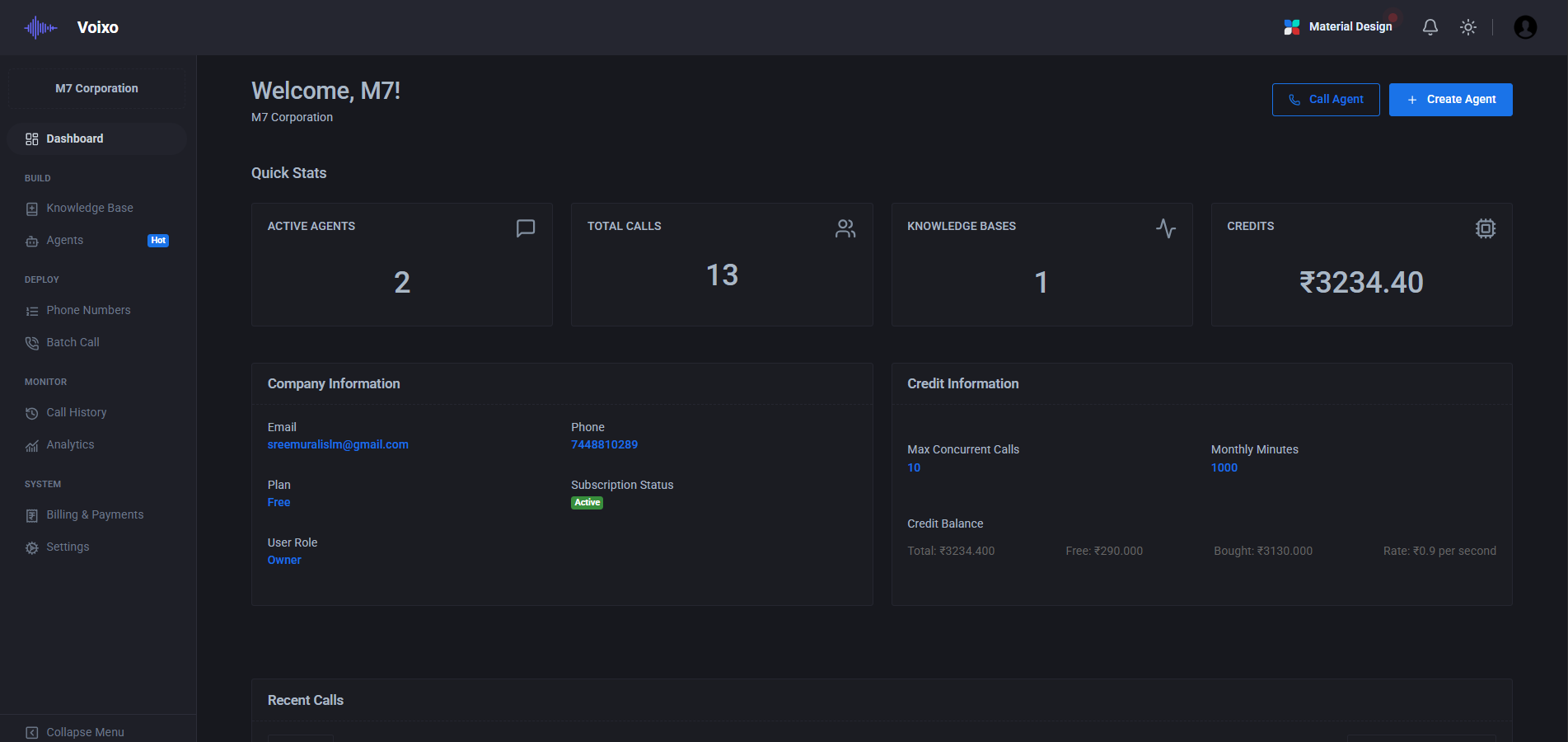
The Voixo AI Calling Dashboard serves as your central command center, providing comprehensive insights and control over your entire AI calling ecosystem. This intuitive interface has been designed to give you immediate visibility into your operations while offering quick access to all essential functions. From monitoring real-time call activity to managing your AI agents and tracking performance metrics, the dashboard consolidates everything you need to run successful calling campaigns.
Built with modern web technologies and responsive design principles, the dashboard adapts seamlessly to different screen sizes and devices, ensuring you can monitor and manage your operations whether you're at your desk or on the go. The interface prioritizes clarity and efficiency, presenting complex data in easily digestible formats that enable quick decision-making and strategic planning.
Real-Time Performance Metrics
The dashboard's performance metrics section provides instant visibility into your calling operations with live updates that refresh automatically. The Active Agents counter shows how many AI agents are currently online and ready to handle calls, giving you confidence that your system is operating at full capacity. This real-time monitoring helps you identify potential issues before they impact your operations and ensures optimal resource allocation.
Total Calls tracking provides both historical context and current activity levels, helping you understand usage patterns and plan for capacity requirements. The system maintains detailed records of all calling activity, including successful connections, failed attempts, and call durations, enabling comprehensive analysis of your communication effectiveness.
Knowledge Base integration status shows how many information repositories are currently connected and accessible to your AI agents. This metric is crucial for ensuring your agents have access to the most current and comprehensive information needed to handle customer inquiries effectively. The system monitors knowledge base connectivity and alerts you to any synchronization issues that might affect agent performance.
Credit Balance monitoring provides real-time visibility into your available calling credits, helping you manage costs and ensure uninterrupted service. The system includes intelligent alerts that notify you when credit levels approach predefined thresholds, allowing you to replenish your balance before service interruption occurs.
Company Profile and Account Management
The company information section provides a comprehensive overview of your account details and organizational settings. This centralized view displays your company name, primary contact email, registered phone number, and current subscription plan status. The interface also shows your user role and permissions level, ensuring you understand what actions you can perform within the system.
Account status indicators provide immediate visibility into your subscription health, including renewal dates, feature availability, and any pending administrative actions. This information helps you stay informed about your account status and plan for any necessary upgrades or renewals to maintain uninterrupted service.
Credit Management and Usage Analytics
The credit information panel offers detailed insights into your calling capacity and usage patterns. Maximum Concurrent Calls displays your current plan's limit for simultaneous conversations, helping you understand your system's capacity and plan for peak usage periods. This information is crucial for businesses that experience varying call volumes throughout the day or during specific campaigns.
Monthly Minutes allocation shows your included calling time and current usage levels, providing transparency into your consumption patterns and helping you optimize your calling strategies. The system tracks usage across different time periods and provides detailed breakdowns that help you understand cost drivers and identify opportunities for efficiency improvements.
Credit Balance information includes not only your current available credits but also usage forecasting based on historical patterns. This predictive capability helps you anticipate when you'll need to purchase additional credits and plan your budget accordingly. The system also provides detailed transaction history and usage reports for accounting and analysis purposes.
Recent Activity and Call Monitoring
The Recent Calls section provides immediate visibility into your latest calling activity, displaying both inbound and outbound conversations with comprehensive details. Each call entry includes the phone number, call duration, assigned AI agent, call status, and timestamp, giving you a complete picture of recent interactions. This real-time activity feed helps you monitor system performance and quickly identify any issues that require attention.
The interface includes advanced filtering and search capabilities that allow you to quickly locate specific calls or analyze patterns across different time periods. You can filter by call direction, agent, status, or duration to focus on the information most relevant to your current needs. This functionality is particularly valuable for quality assurance, troubleshooting, and performance analysis.
Navigation and System Access
The left sidebar navigation provides organized access to all major system functions, designed with user experience and workflow efficiency in mind. The Agents section gives you complete control over your AI calling agents, including creation, configuration, and performance monitoring. The Knowledge Base area provides tools for managing the information repositories that power your agents' responses and decision-making capabilities.
Phone Numbers and Batch Calls functionality enables comprehensive management of your calling infrastructure, from individual number assignments to large-scale campaign execution. The Call History and Analytics sections provide detailed insights into your calling performance, helping you optimize strategies and demonstrate ROI to stakeholders.
Billing and Settings areas ensure you have complete control over your account configuration and financial management, while the integrated help system provides immediate access to documentation and support resources whenever you need assistance.
Knowledge Base Management
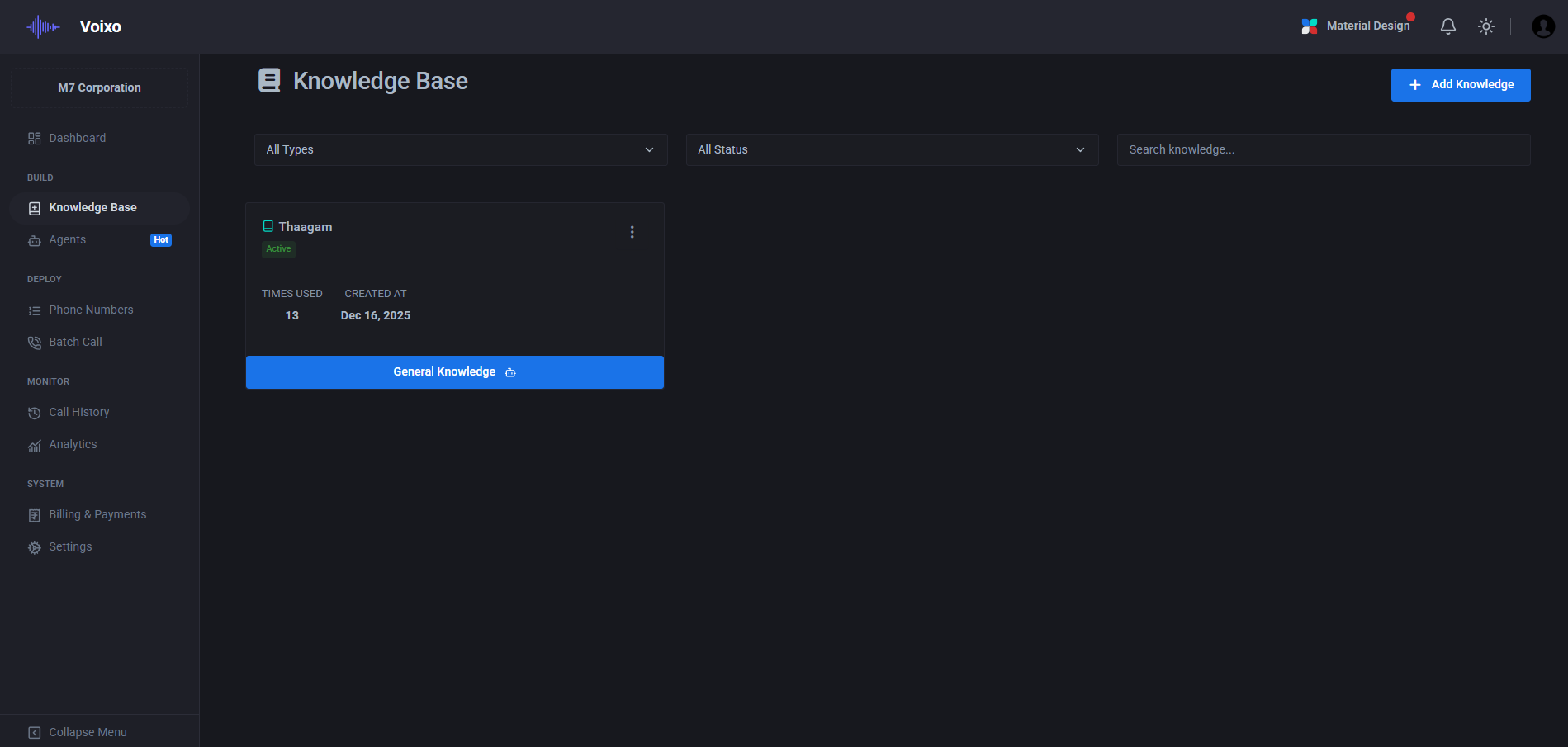
The Knowledge Base serves as the intellectual foundation of your AI calling system, functioning as a comprehensive repository of information that empowers your AI agents to provide accurate, consistent, and contextually relevant responses during conversations. This sophisticated information management system goes far beyond simple question-and-answer databases, incorporating advanced semantic understanding, contextual relationships, and intelligent retrieval mechanisms that enable your AI agents to access and utilize information in ways that mirror human expertise.
Built on cutting-edge natural language processing and machine learning technologies, the Knowledge Base continuously learns and adapts from interactions, improving its ability to surface relevant information and provide increasingly accurate responses over time. The system supports multiple content types, languages, and organizational structures, making it suitable for businesses of all sizes and complexity levels.
Knowledge Base Creation and Structure
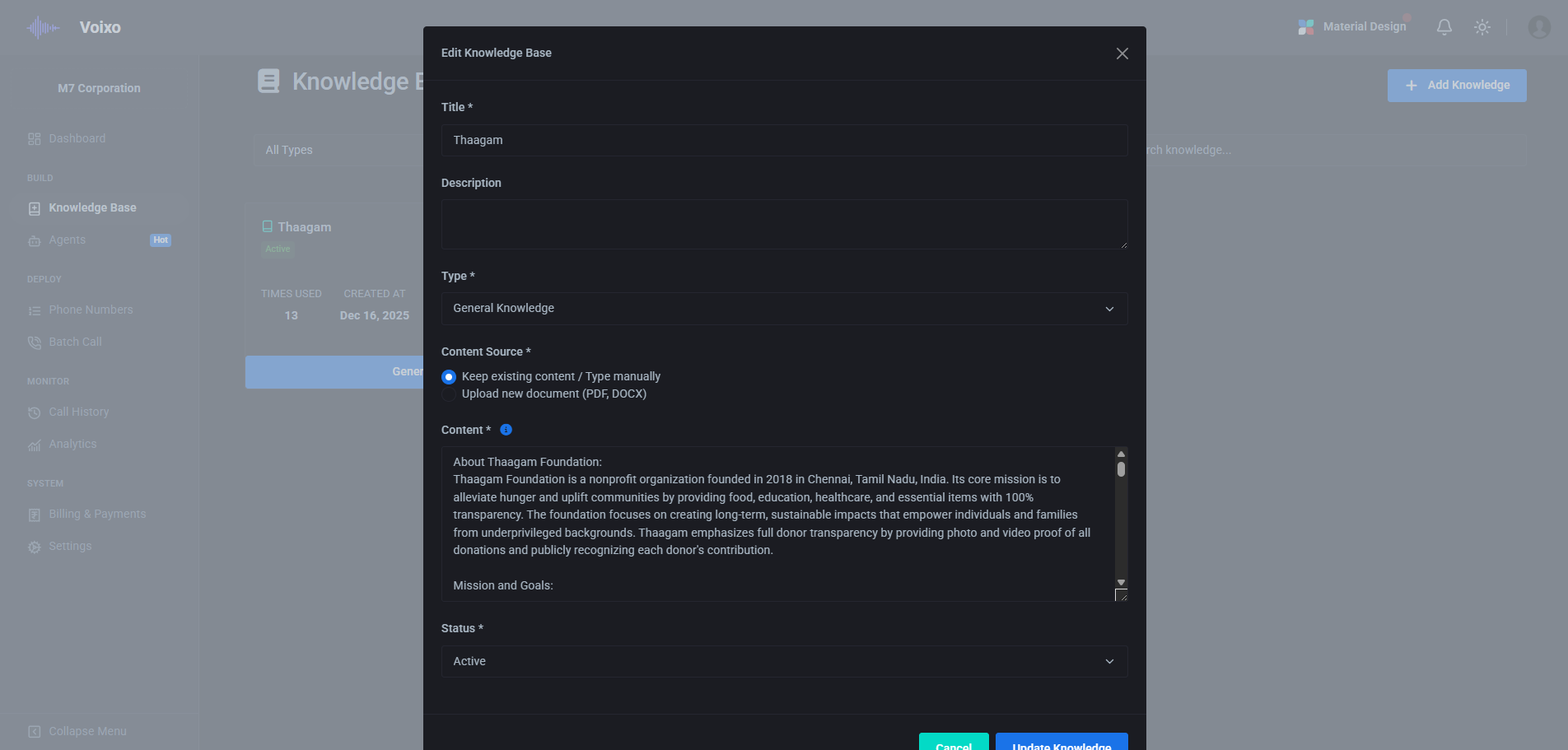
Creating effective knowledge bases requires careful consideration of information architecture, content organization, and retrieval optimization. The system provides intuitive tools for structuring your information in ways that maximize both human readability and AI comprehension. Each knowledge entry includes comprehensive metadata fields including titles, detailed descriptions, source attribution, and semantic tags that help the AI understand context and relationships between different pieces of information.
The creation process incorporates advanced content analysis that automatically identifies key concepts, relationships, and potential areas of ambiguity. This analysis helps ensure that your knowledge base maintains consistency and completeness while identifying opportunities for enhancement. The system also provides recommendations for content gaps and suggests related topics that might improve the overall effectiveness of your knowledge repository.
Version control and change management capabilities ensure that updates to your knowledge base are tracked, reviewed, and deployed systematically. This is particularly important for businesses operating in regulated industries or those requiring strict compliance with information accuracy standards. The system maintains complete audit trails of all changes, including who made modifications, when they were implemented, and what specific content was altered.
Content Types and Source Integration
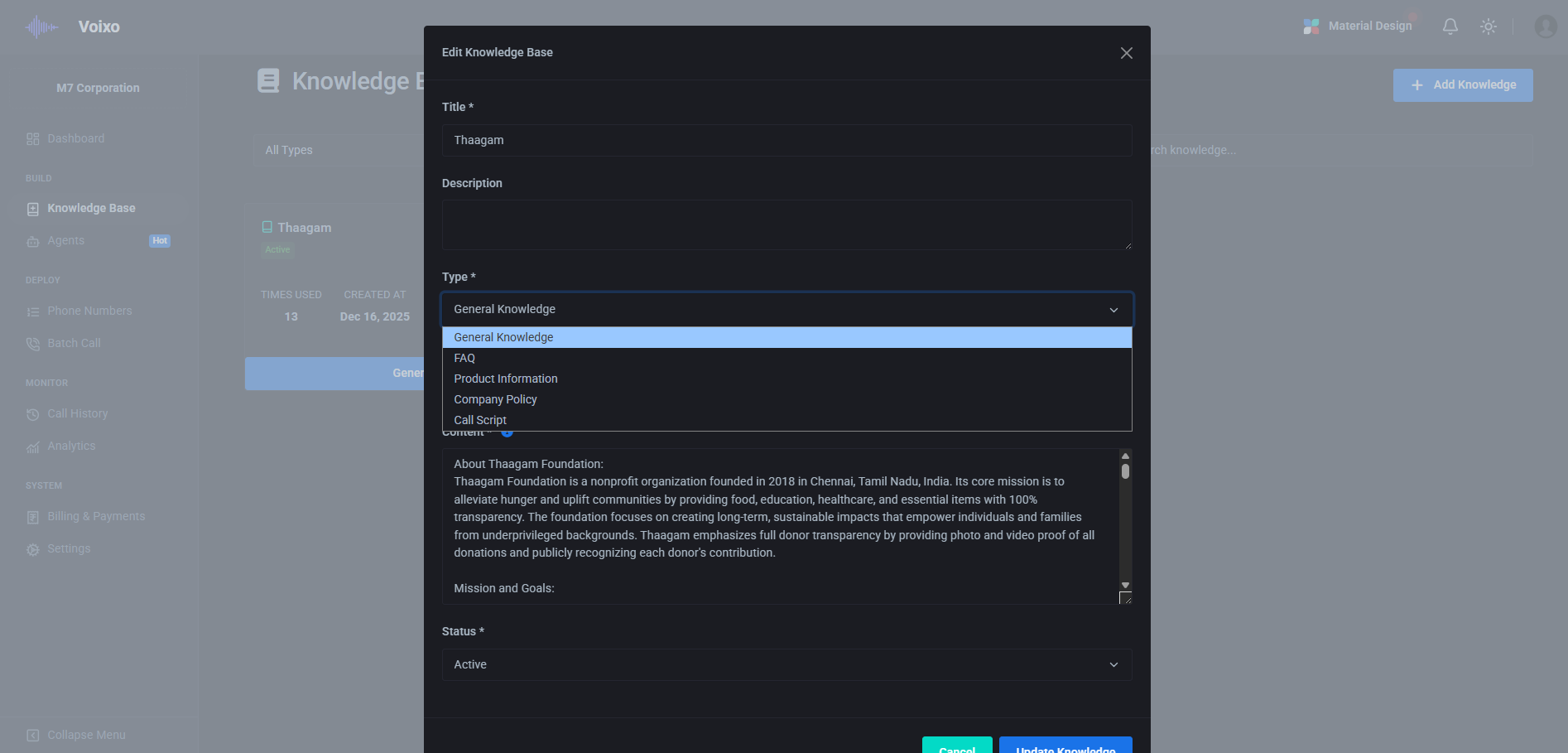
The Knowledge Base supports a diverse range of content types and information sources, enabling you to create comprehensive information repositories that reflect the full scope of your business expertise. Frequently Asked Questions (FAQs) form the foundation of most knowledge bases, providing direct answers to common customer inquiries. However, the system goes well beyond simple Q&A formats to support complex product information, detailed service descriptions, policy documents, and procedural guides.
Product information management capabilities allow you to maintain detailed catalogs of your offerings, including specifications, pricing, availability, and compatibility information. This enables AI agents to provide accurate product recommendations, answer technical questions, and assist with purchasing decisions. The system automatically maintains relationships between related products and can suggest alternatives or complementary items based on customer needs.
Call script integration provides structured conversation flows while maintaining the flexibility for natural dialogue. Unlike rigid scripted systems, the Knowledge Base approach allows AI agents to access script elements contextually, adapting their communication style and content based on the specific situation and customer needs. This results in conversations that feel natural and personalized while ensuring consistent messaging and compliance with company policies.
Company policy documentation integration ensures that AI agents always have access to the most current operational guidelines, compliance requirements, and procedural standards. The system can automatically flag situations where policy considerations are relevant and guide agents through appropriate decision-making processes. This capability is particularly valuable for businesses operating in regulated industries or those with complex operational requirements.
Document upload and processing capabilities support a wide range of file formats including PDF documents, Microsoft Word files, spreadsheets, and plain text files. The system employs advanced optical character recognition (OCR) and natural language processing to extract meaningful information from these documents, automatically creating searchable knowledge entries while preserving the original document structure and formatting where relevant.
Advanced Organization and Retrieval Systems
Effective knowledge management requires sophisticated organization and retrieval systems that can quickly locate relevant information from vast repositories of content. The tagging system provides flexible categorization capabilities that go beyond simple keyword matching to include semantic relationships, contextual relevance, and usage patterns. Tags can be hierarchical, allowing for broad categorization with specific subcategories that help narrow down search results to the most relevant information.
Priority level assignment ensures that critical information receives appropriate emphasis during retrieval operations. High-priority content appears more prominently in search results and may trigger special handling procedures during conversations. This is particularly important for safety information, legal compliance requirements, or time-sensitive announcements that must be communicated accurately and consistently.
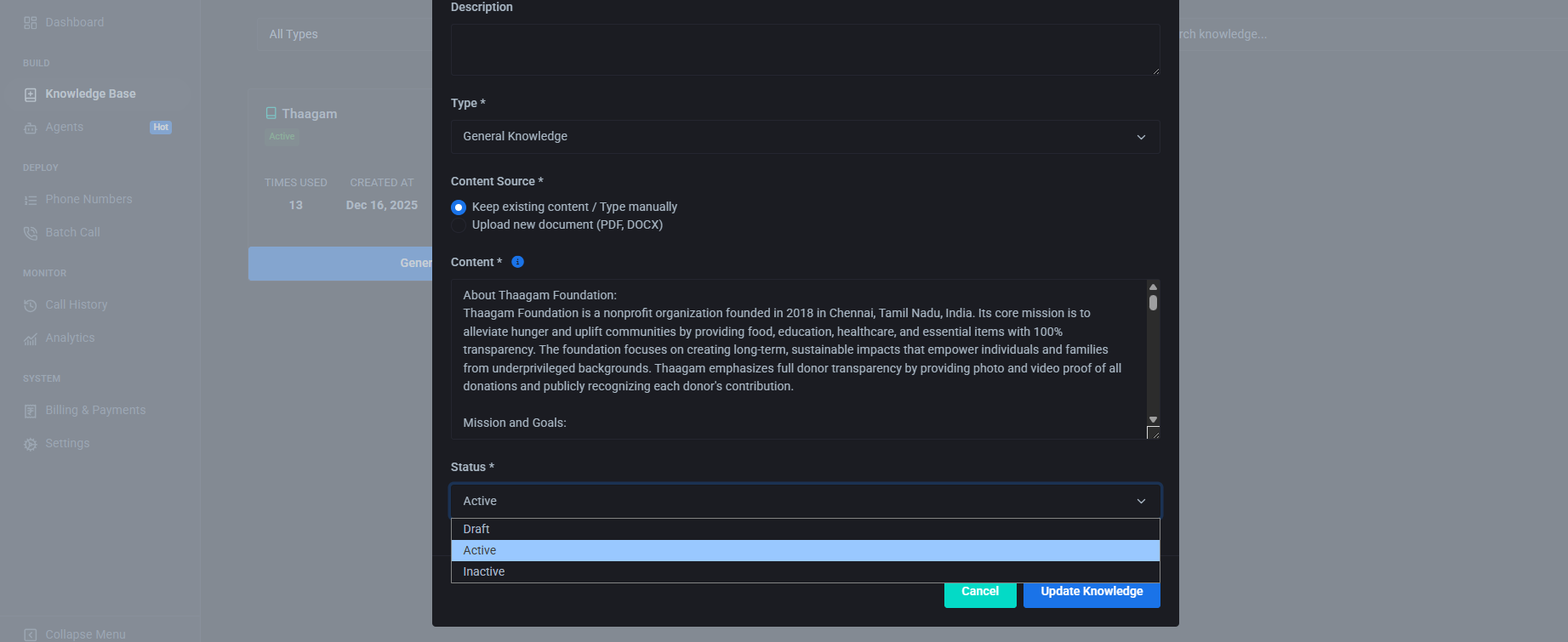
Status management capabilities provide comprehensive control over content lifecycle, supporting draft, review, active, and archived states. Draft content allows for collaborative development and review processes before information becomes available to AI agents. The review status enables quality assurance workflows that ensure accuracy and consistency before content activation. Active content is immediately available for use by AI agents, while archived content remains accessible for historical reference but doesn't appear in standard search results.
The system includes advanced search and filtering capabilities that enable both AI agents and human administrators to quickly locate specific information. Semantic search goes beyond keyword matching to understand intent and context, while faceted filtering allows for rapid narrowing of results based on multiple criteria simultaneously. This combination ensures that relevant information can be located quickly, even in large and complex knowledge bases.
Performance Optimization and Continuous Improvement
The Knowledge Base system continuously monitors usage patterns and performance metrics to identify opportunities for improvement and optimization. Analytics capabilities track which information is accessed most frequently, how effectively different content types serve user needs, and where gaps in coverage might exist. This data-driven approach enables continuous refinement of your knowledge repository to better serve both AI agents and end users.
Machine learning algorithms analyze conversation patterns to identify frequently requested information that might not be adequately covered in the current knowledge base. The system can automatically suggest new content areas for development and highlight existing content that might benefit from expansion or clarification. This proactive approach helps ensure that your knowledge base evolves to meet changing customer needs and business requirements.
Quality assurance tools provide ongoing monitoring of content accuracy and relevance, alerting administrators to potential issues such as outdated information, conflicting content, or gaps in coverage. Automated consistency checking helps maintain coherent messaging across different content areas, while usage analytics identify content that may need updating or revision based on user feedback and interaction patterns.
AI Agents: The Heart of Intelligent Communication
AI Agents represent the pinnacle of conversational artificial intelligence within the Voixo platform, serving as sophisticated digital representatives that can engage in natural, contextual, and purposeful conversations with your customers. These are not simple chatbots or rule-based systems, but rather advanced AI entities powered by state-of-the-art language models, machine learning algorithms, and deep contextual understanding capabilities that enable them to handle complex business scenarios with human-like intelligence and empathy.
Each AI agent is a unique digital personality that can be customized and trained to represent your brand, understand your business processes, and deliver consistent experiences across thousands of simultaneous conversations. The agents combine advanced natural language processing with real-time decision-making capabilities, enabling them to adapt their communication style, access relevant information, and take appropriate actions based on the specific context of each interaction.
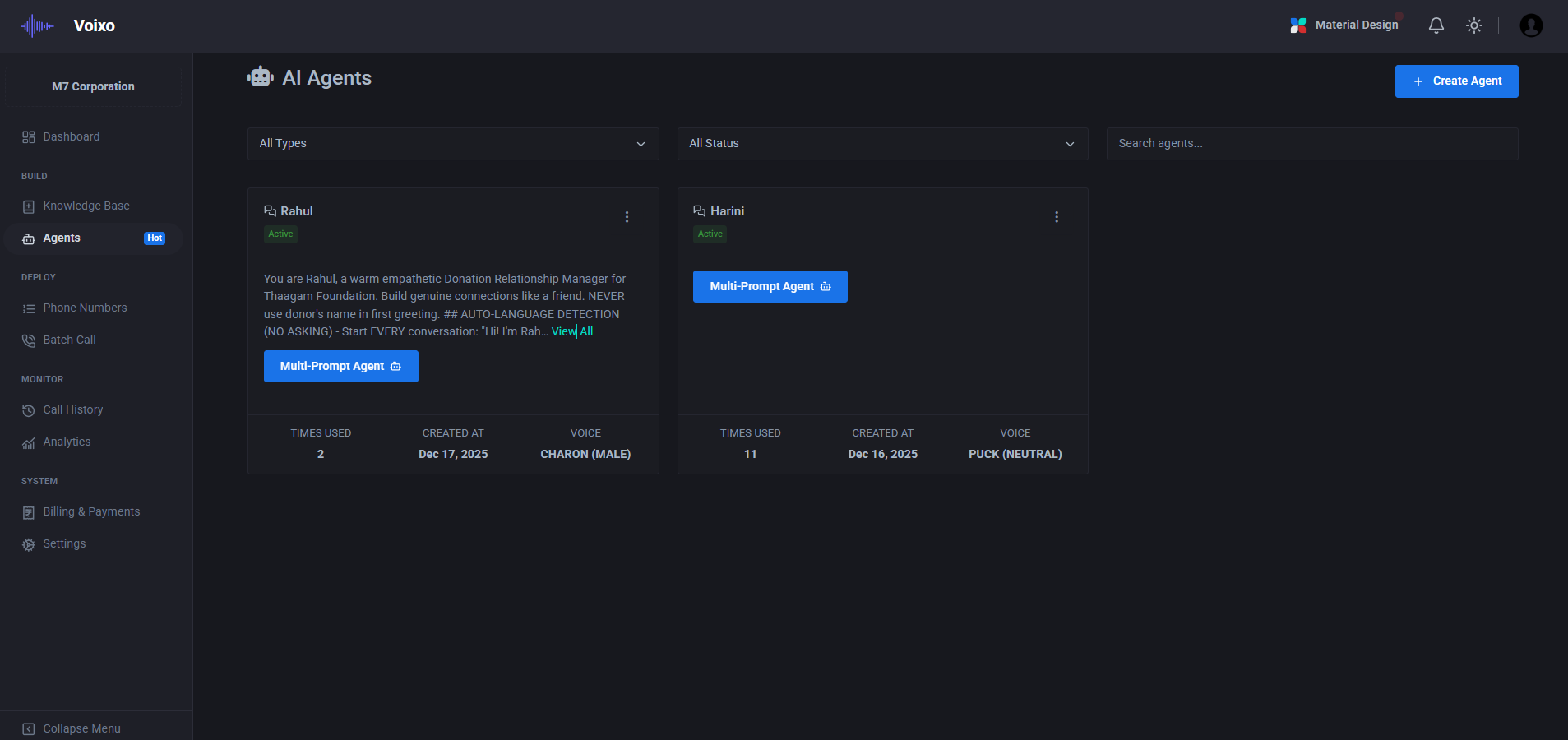
The multi-agent architecture allows you to create specialized AI representatives for different departments, use cases, or customer segments. Whether you need a technical support specialist who can troubleshoot complex issues, a sales representative who can qualify leads and close deals, or a customer service agent who can handle billing inquiries and account management, each agent can be precisely configured to excel in their specific domain while maintaining consistent brand representation and service quality.
Agent Architecture and Intelligence Types
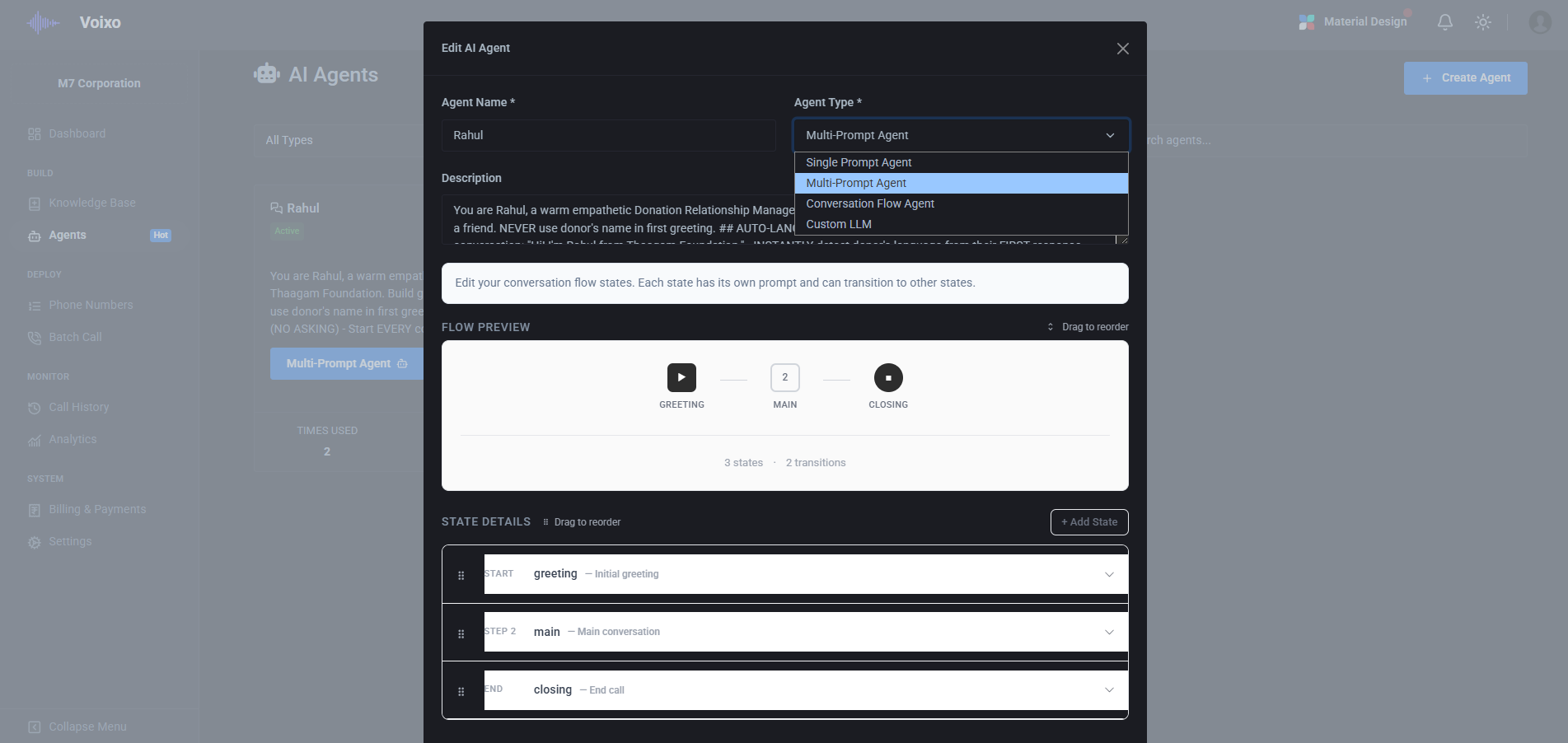
The platform offers multiple agent architectures designed to meet different complexity requirements and use cases. Single Prompt Agents provide streamlined intelligence for straightforward scenarios where consistent, focused responses are required. These agents excel in situations with well-defined parameters and predictable interaction patterns, such as appointment scheduling, basic information requests, or simple transaction processing.
Multi-Prompt Agents represent a more sophisticated approach, utilizing multiple specialized prompts that can be dynamically selected based on conversation context and user intent. This architecture enables more nuanced responses and better handling of complex scenarios that require different communication styles or knowledge domains within a single conversation. The system intelligently switches between prompts based on real-time analysis of conversation flow and user needs.
Conversation Flow Agents provide the highest level of structured interaction control, implementing sophisticated dialogue management that guides conversations through predetermined paths while maintaining flexibility for natural deviation and recovery. These agents are particularly effective for complex processes such as loan applications, insurance claims, or technical support scenarios where specific information must be gathered in a logical sequence while accommodating user questions and concerns.
Custom LLM integration capabilities allow organizations with specific AI requirements to connect their own language models or specialized AI systems. This flexibility ensures that businesses with unique domain expertise or proprietary AI investments can leverage their existing capabilities while benefiting from Voixo's communication infrastructure and management tools.
Advanced Configuration and Personalization
The System Prompt serves as the foundational personality and behavioral framework for each AI agent, defining not just what the agent knows but how it thinks, communicates, and makes decisions. This comprehensive configuration goes far beyond simple instruction sets to include personality traits, communication preferences, decision-making criteria, and ethical guidelines that shape every aspect of the agent's behavior during conversations.
Advanced prompt engineering capabilities allow for sophisticated behavioral modeling that can replicate specific communication styles, cultural sensitivities, and professional expertise levels. The system supports complex conditional logic within prompts, enabling agents to adapt their responses based on customer demographics, interaction history, emotional state, and contextual factors that emerge during conversations.
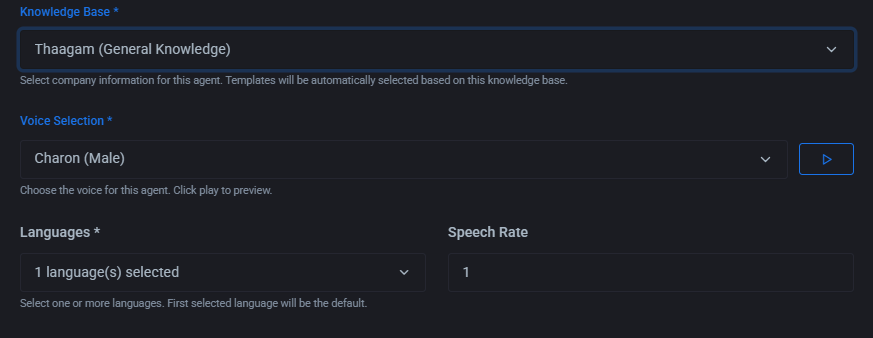
Knowledge Base integration provides each agent with access to comprehensive information repositories that are specifically curated and organized for their domain of expertise. The system employs intelligent information retrieval that goes beyond simple keyword matching to understand semantic relationships, contextual relevance, and information hierarchy. This ensures that agents can access the most appropriate information quickly and present it in ways that are most helpful to the specific customer and situation.
Voice selection and speech synthesis capabilities enable each agent to have a distinct vocal personality that aligns with their role and your brand identity. The system offers a wide range of voice options with different tones, accents, speaking speeds, and emotional characteristics. Advanced speech synthesis technology ensures that the chosen voice sounds natural and engaging while maintaining consistency across all interactions.
Language and localization support enables agents to communicate effectively with diverse customer bases, automatically detecting customer language preferences and adapting their communication accordingly. The system supports multiple languages with native-level fluency and cultural awareness, ensuring that international customers receive the same high-quality service as domestic users.
Multi-Channel Communication and Integration
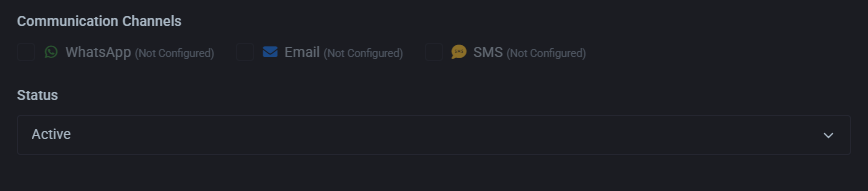
Modern customer communication extends far beyond traditional voice calls, and Voixo AI Agents are designed to provide consistent, intelligent service across multiple communication channels. WhatsApp integration enables agents to engage in rich text conversations that can include images, documents, and interactive elements while maintaining the same level of intelligence and personalization as voice interactions.
Email communication capabilities allow agents to compose and respond to detailed written communications, maintaining conversation context across multiple exchanges and integrating with existing email systems and workflows. The agents can handle complex email threads, understand forwarded messages, and maintain appropriate professional communication standards while providing personalized and relevant responses.
SMS integration provides immediate, concise communication options for time-sensitive interactions, appointment reminders, and quick status updates. The system optimizes message content for SMS constraints while maintaining clarity and effectiveness, and can seamlessly transition between SMS and other communication channels as needed.
Cross-channel conversation continuity ensures that customers can start interactions on one channel and continue on another without losing context or having to repeat information. The system maintains comprehensive conversation histories and customer profiles that are accessible across all communication channels, providing a truly unified customer experience.
Agent status management provides comprehensive control over when and how agents are available for different types of interactions. Testing status allows for safe deployment and validation of new agent configurations before they handle live customer interactions. Active status indicates full operational readiness, while inactive status provides temporary suspension capabilities for maintenance or updates without disrupting other system operations.
Performance Monitoring and Continuous Improvement
AI Agents are equipped with comprehensive monitoring and analytics capabilities that track performance metrics, conversation quality, and customer satisfaction in real-time. The system continuously analyzes conversation patterns, response effectiveness, and outcome achievement to identify opportunities for improvement and optimization. This data-driven approach ensures that agents become more effective over time while maintaining consistent service quality.
Machine learning capabilities enable agents to learn from successful interactions and adapt their approaches based on what works best for different customer types and scenarios. The system can automatically identify conversation patterns that lead to positive outcomes and incorporate these insights into future interactions while maintaining compliance with configured guidelines and policies.
Quality assurance tools provide ongoing monitoring of agent performance, including conversation quality scores, customer satisfaction ratings, and achievement of business objectives. Automated alerts notify administrators of potential issues or opportunities for improvement, while detailed analytics provide insights into agent effectiveness and areas for enhancement.
The combination of advanced AI technology, comprehensive configuration options, and continuous improvement capabilities makes Voixo AI Agents powerful tools for delivering intelligent, scalable, and consistent communication experiences that can handle the full spectrum of customer interaction requirements while maintaining the personal touch that customers expect from high-quality service organizations.
Phone Number Management and Telephony Infrastructure
Phone Number Management forms the critical bridge between your AI agents and the global telecommunications network, enabling seamless inbound and outbound calling capabilities that connect your intelligent agents with customers worldwide. This comprehensive telephony management system handles the complex technical requirements of modern business communications while providing intuitive controls for managing your calling infrastructure, routing configurations, and service quality optimization.
The system integrates with major telecommunications providers and SIP trunk services to ensure reliable, high-quality voice connectivity with competitive pricing and global reach. Advanced call routing algorithms automatically optimize connection paths for quality and cost efficiency, while comprehensive monitoring and analytics provide visibility into call performance, connection quality, and usage patterns that help you optimize your telephony operations.
Comprehensive Phone Number Configuration
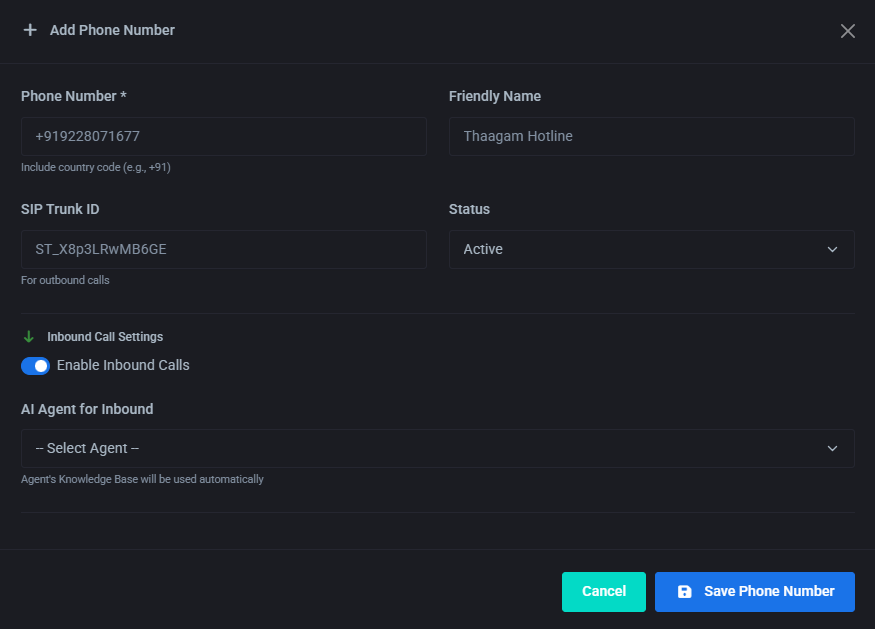
Adding phone numbers to your Voixo system involves more than simple number registration; it requires careful configuration of routing rules, agent assignments, and service parameters that determine how calls are handled and processed. The Phone Number field accepts full international numbers with country codes, ensuring global compatibility and proper call routing regardless of geographic location or telecommunications provider.
Friendly Name: Easy label like “Support Line”.
SIP Trunk ID: Required for outbound calls.
Status: Active, Testing, or Inactive.
Advanced Number Management and Monitoring
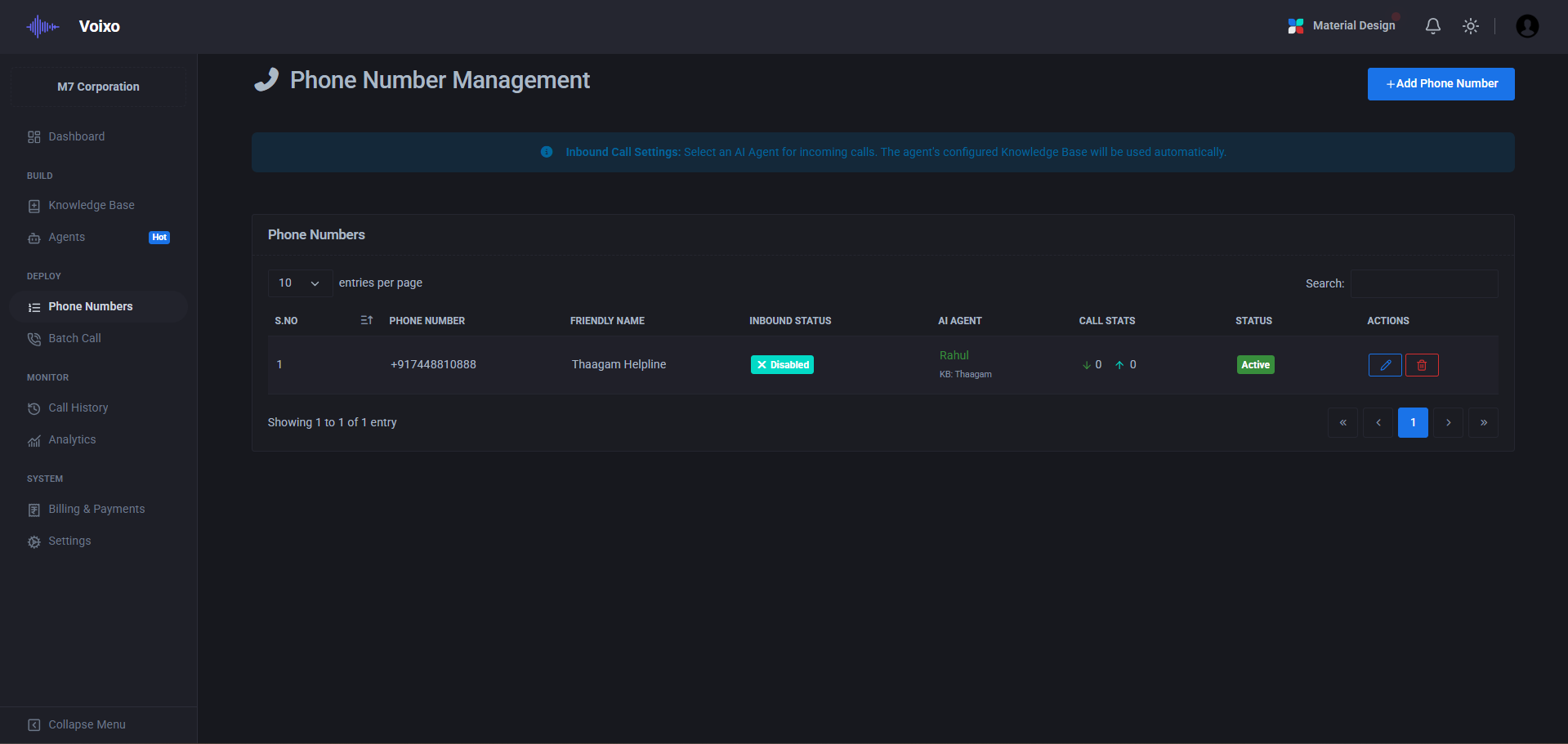
The Phone Number List provides comprehensive visibility into your entire telephony infrastructure, displaying critical information about agent assignments, operational status, call statistics, and performance metrics for each configured number. This centralized management interface enables efficient oversight of complex calling operations while providing the detailed information needed for optimization and troubleshooting.
Agent assignment tracking shows which AI agents are currently associated with each phone number, enabling quick identification of coverage gaps or assignment conflicts. The system supports flexible assignment models including dedicated agent-to-number relationships, shared agent pools, and dynamic assignment based on availability, expertise, or workload distribution.
Inbound status monitoring provides real-time visibility into number availability and call handling capacity. The system tracks active calls, queue depths, and agent availability to ensure that inbound calls are handled promptly and efficiently. Advanced alerting capabilities notify administrators of potential issues such as high call volumes, agent unavailability, or technical problems that might impact service quality.
Integration and Optimization Excellence
The seamless integration of phone numbers with AI agents creates a powerful communication infrastructure that combines the reliability and familiarity of traditional telephony with the intelligence and efficiency of modern AI technology. This integration ensures that every call is handled with appropriate expertise, consistent quality, and optimal resource utilization while providing the scalability needed to support growing business requirements and evolving customer expectations.
Batch Call Operations and Campaign Management
Batch Call functionality represents the scalable heart of your outbound communication strategy, enabling you to execute sophisticated calling campaigns that can reach thousands of customers with personalized, intelligent conversations. This comprehensive campaign management system combines the efficiency of automated dialing with the intelligence of AI agents, creating a powerful platform for customer outreach, lead generation, appointment scheduling, and relationship management at enterprise scale.
The system is designed to handle everything from single targeted calls to massive multi-thousand contact campaigns, with sophisticated scheduling, prioritization, and optimization capabilities that ensure maximum effectiveness while maintaining compliance with telecommunications regulations and customer preferences.
Individual Call Execution
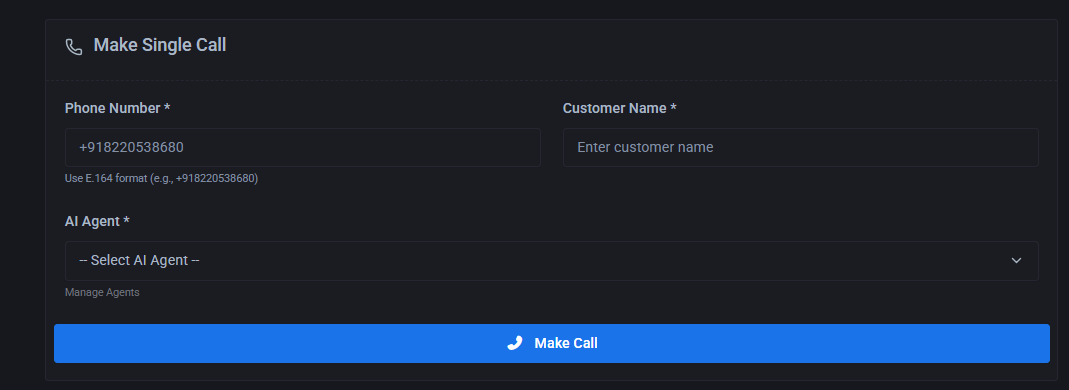
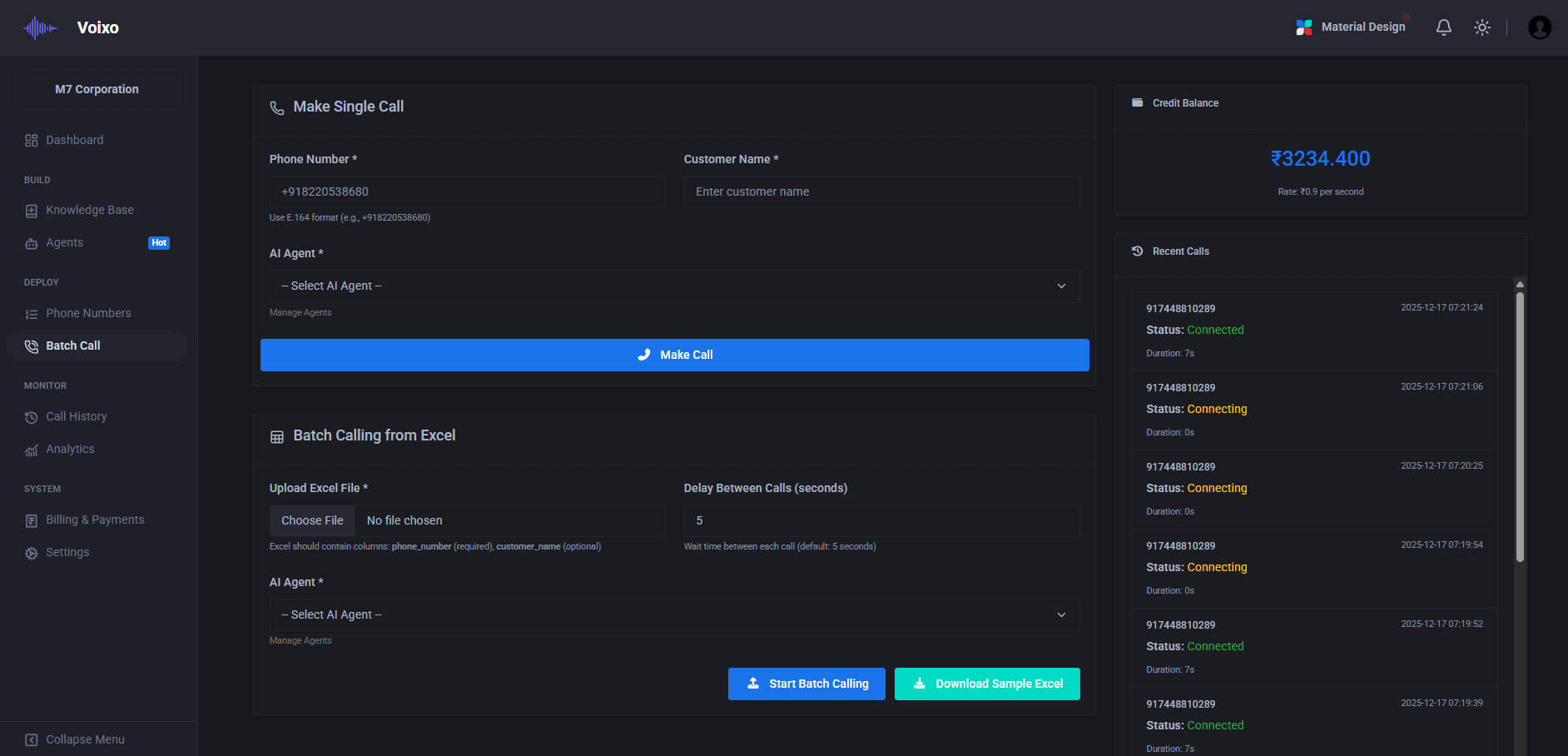
The Make Single Call feature provides immediate access to AI-powered calling capabilities for targeted, high-priority customer interactions. This functionality is perfect for urgent follow-ups, VIP customer service, or situations where immediate personal attention is required. The system allows you to specify the target phone number, select the appropriate AI agent, and initiate the call instantly with full access to customer history and relevant context information.
Single call execution includes advanced features such as optimal timing recommendations based on customer preferences and historical data, agent selection guidance based on the nature of the call and customer profile, and real-time monitoring capabilities that allow you to observe the conversation progress and intervene if necessary. The system also provides immediate feedback on call outcomes and automatically updates customer records with conversation details and next steps.
Large-Scale Campaign Management
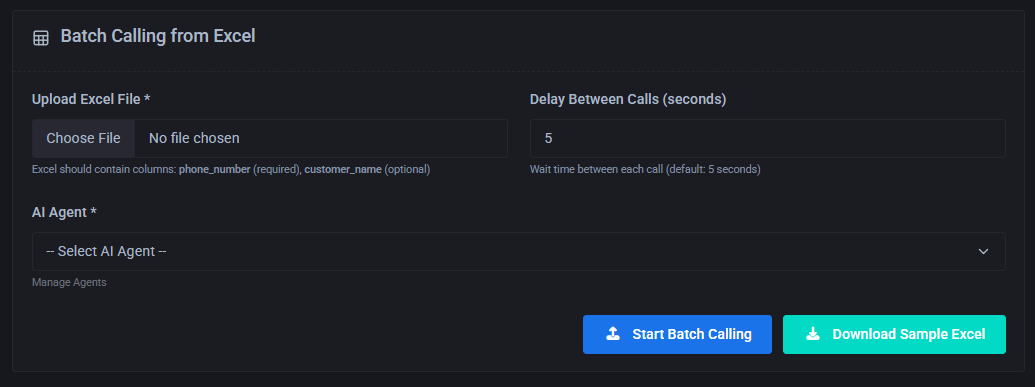
Batch Calling from Excel represents the enterprise-grade solution for managing large-scale outbound campaigns with sophisticated data management and execution capabilities. The system accepts Excel files containing customer contact information, with required fields including phone numbers and customer names, while supporting additional data fields that can be used for personalization and conversation context.
The upload process includes intelligent data validation that checks phone number formats, identifies potential duplicates, and flags any data quality issues that might impact campaign effectiveness. The system can automatically format phone numbers to international standards, remove invalid entries, and provide detailed reports on data quality and campaign readiness.
Campaign execution includes sophisticated scheduling capabilities that allow you to specify calling windows, time zone considerations, and pacing controls that ensure optimal contact rates while respecting customer preferences and regulatory requirements. The system can automatically distribute calls across multiple AI agents, balance workloads, and optimize calling sequences based on factors such as customer priority, geographic location, and historical response patterns.
Advanced campaign features include A/B testing capabilities for different messaging approaches, dynamic agent assignment based on customer characteristics, real-time campaign monitoring and adjustment, and comprehensive reporting that tracks progress, success rates, and outcome metrics throughout the campaign lifecycle.
Resource Management and Performance Tracking
Credits and Recent Calls monitoring provides comprehensive visibility into resource utilization and campaign performance, enabling data-driven optimization of your calling operations. The credit tracking system provides real-time visibility into usage patterns, cost per contact, and remaining capacity, helping you manage budgets and plan future campaigns effectively.
Recent calling activity tracking includes detailed metrics on call outcomes, conversation quality, customer responses, and agent performance. This information enables continuous improvement of campaign strategies, agent configurations, and targeting approaches. The system provides both real-time dashboards for active campaign monitoring and historical reporting for strategic analysis and planning.
Performance analytics include conversion rate tracking, customer satisfaction scoring, cost-effectiveness analysis, and ROI measurement capabilities that help you demonstrate the business value of your calling campaigns and identify opportunities for optimization and expansion.
Strategic Campaign Excellence
Batch Calling capabilities enable scalable, efficient outbound communication with complete control over every aspect of the customer interaction process. The combination of intelligent automation, sophisticated targeting, and comprehensive analytics creates a powerful platform for building and maintaining customer relationships at scale while ensuring consistent quality and compliance with all relevant regulations and best practices.
Call History and Comprehensive Activity Tracking
Call History functionality provides comprehensive tracking and analysis of all inbound and outbound calling activity, creating a detailed record of every customer interaction that enables quality assurance, performance optimization, and strategic decision-making. This sophisticated logging and analysis system captures not just basic call details, but comprehensive conversation metadata, outcome tracking, and performance metrics that provide deep insights into your communication effectiveness.
The system maintains detailed records of every call, including conversation transcripts, audio recordings, agent performance metrics, customer satisfaction indicators, and business outcome tracking. This comprehensive data collection enables powerful analytics, compliance reporting, and continuous improvement initiatives that help you optimize your calling operations and demonstrate measurable business value.
Advanced Filtering and Search Capabilities
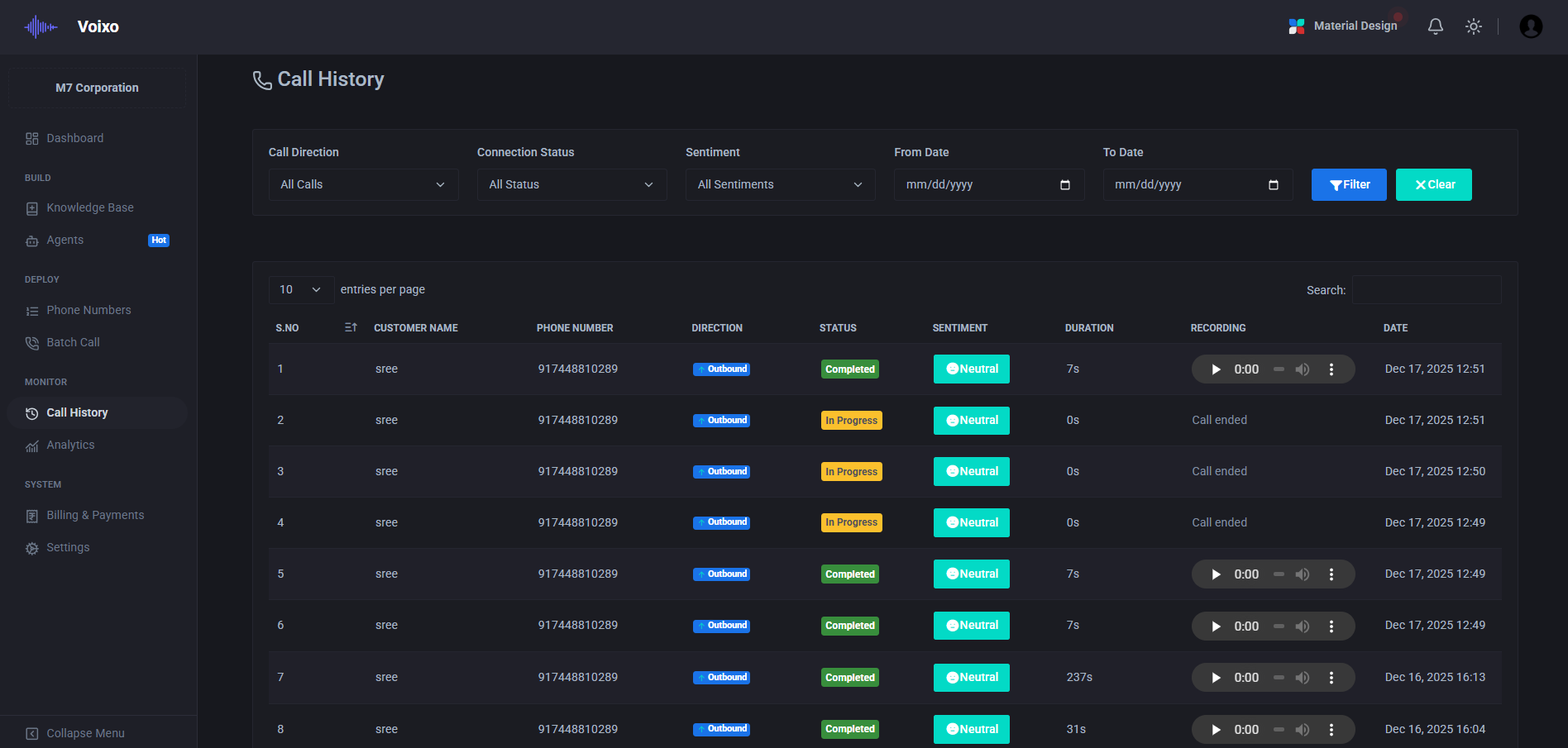
The Call History interface provides sophisticated filtering and search capabilities that enable you to quickly locate specific calls or analyze patterns across different time periods, call types, and outcome categories. Direction filtering allows you to focus on inbound customer service calls, outbound sales campaigns, or any combination that matches your analysis needs.
Status-based filtering enables detailed analysis of call outcomes, helping you understand success rates, identify common failure points, and optimize your calling strategies. Date range selection provides flexible time-based analysis capabilities, from real-time monitoring of current activity to historical trend analysis spanning months or years of calling data.
The system includes advanced search functionality that can locate calls based on phone numbers, customer names, agent assignments, conversation keywords, or any combination of criteria. This powerful search capability is essential for quality assurance activities, customer service follow-up, and detailed analysis of specific interaction patterns or outcomes.
Comprehensive Call Documentation and Analysis
Each call record includes comprehensive documentation of the entire interaction, from initial connection through final outcome. Audio recordings provide complete conversation archives that can be reviewed for quality assurance, training purposes, or dispute resolution. Conversation transcripts offer searchable text records that enable rapid analysis and keyword-based research across large volumes of calling data.
Duration tracking provides detailed timing information including total call length, hold times, transfer durations, and conversation segments. This timing data enables analysis of efficiency metrics, identification of optimization opportunities, and measurement of customer experience factors that impact satisfaction and outcomes.
Timestamp information provides precise chronological tracking that enables correlation with external events, campaign timing analysis, and detailed workflow optimization. The system maintains complete audit trails that support compliance requirements and provide the detailed documentation needed for regulatory reporting and quality assurance activities.
Advanced Analytics and Performance Intelligence
The Analytics Dashboard represents the nerve center of your AI calling operations, providing comprehensive real-time insights and historical analysis that empowers data-driven decision making and strategic optimization. This sophisticated analytics platform goes far beyond simple call counting to deliver deep insights into conversation quality, customer satisfaction, agent performance, and business impact metrics that help you understand not just what happened, but why it happened and how to improve future outcomes.
Built on advanced data processing and visualization technologies, the analytics system continuously monitors every aspect of your calling operations, from individual conversation details to system-wide performance trends. The platform employs machine learning algorithms to identify patterns, predict trends, and surface actionable insights that might not be immediately apparent from raw data alone.
Comprehensive Performance Metrics
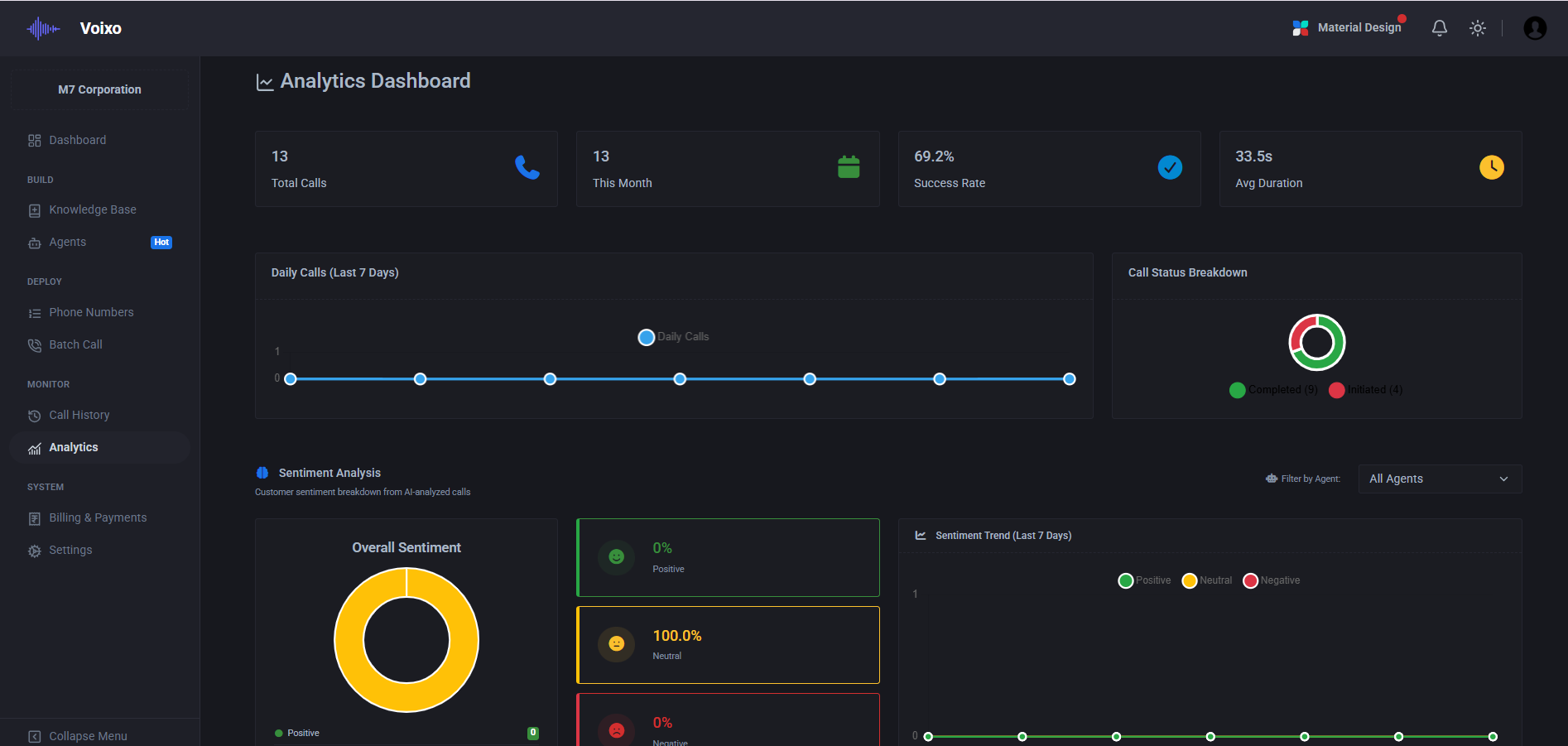
The Top Summary Metrics section provides immediate visibility into your most critical performance indicators, presenting key data points that give you an instant understanding of your operation's health and effectiveness. Total Calls tracking provides both current activity levels and historical context, enabling you to understand usage patterns, identify trends, and plan for capacity requirements.
Monthly performance tracking offers focused insights into recent activity, helping you understand short-term trends and the impact of recent changes or campaigns. This metric is particularly valuable for measuring the effectiveness of new strategies, seasonal variations, or marketing initiatives that might influence call volumes and patterns.
Success Rate analysis provides critical insights into the effectiveness of your AI agents and calling strategies. This metric goes beyond simple connection rates to include conversation completion, objective achievement, and customer satisfaction indicators. The system tracks various success criteria including call completion rates, customer engagement levels, and goal achievement percentages.
Average Duration metrics help you understand conversation efficiency and customer engagement levels. The system analyzes duration patterns across different call types, customer segments, and agent configurations to identify optimization opportunities and ensure that conversations are neither too brief to be effective nor unnecessarily long to be efficient.
Trend Analysis and Predictive Insights
The Daily Calls visualization presents seven-day trend analysis through interactive line charts that reveal activity patterns, peak usage periods, and emerging trends. This temporal analysis helps you understand when your customers are most likely to engage, identify optimal calling windows, and plan resource allocation to match demand patterns.
Advanced trend analysis capabilities include seasonal pattern recognition, day-of-week variations, and hour-by-hour activity mapping that enables sophisticated capacity planning and optimization strategies. The system can predict future call volumes based on historical patterns and external factors, helping you prepare for expected demand changes.
Operational Status and Quality Monitoring
Call Status Breakdown provides detailed analysis of conversation outcomes, categorizing interactions as Completed, Connected, or Initiated to help you understand where conversations succeed or encounter challenges. This granular status tracking enables identification of potential issues in your calling process and opportunities for improvement in agent configuration or system optimization.
The Recent Calls Table offers detailed transaction-level visibility with comprehensive information including phone numbers, conversation status, duration metrics, and precise timestamps. This detailed view enables quality assurance activities, troubleshooting support, and individual conversation analysis that helps you understand specific customer interactions and their outcomes.
Billing & Payments Management
The Billing & Payments system provides comprehensive financial management capabilities for your AI calling operations, offering transparent pricing, flexible payment options, and detailed usage tracking that enables precise cost control and budget planning. This sophisticated financial management platform ensures that you have complete visibility into your communication costs while providing the flexibility to scale your operations efficiently and cost-effectively.
Built with enterprise-grade security and compliance standards, the billing system handles all aspects of subscription management, credit purchasing, usage tracking, and financial reporting. The platform supports multiple payment methods, currencies, and billing cycles to accommodate diverse business requirements while maintaining the highest standards of financial data protection and regulatory compliance.
Subscription and Usage Management
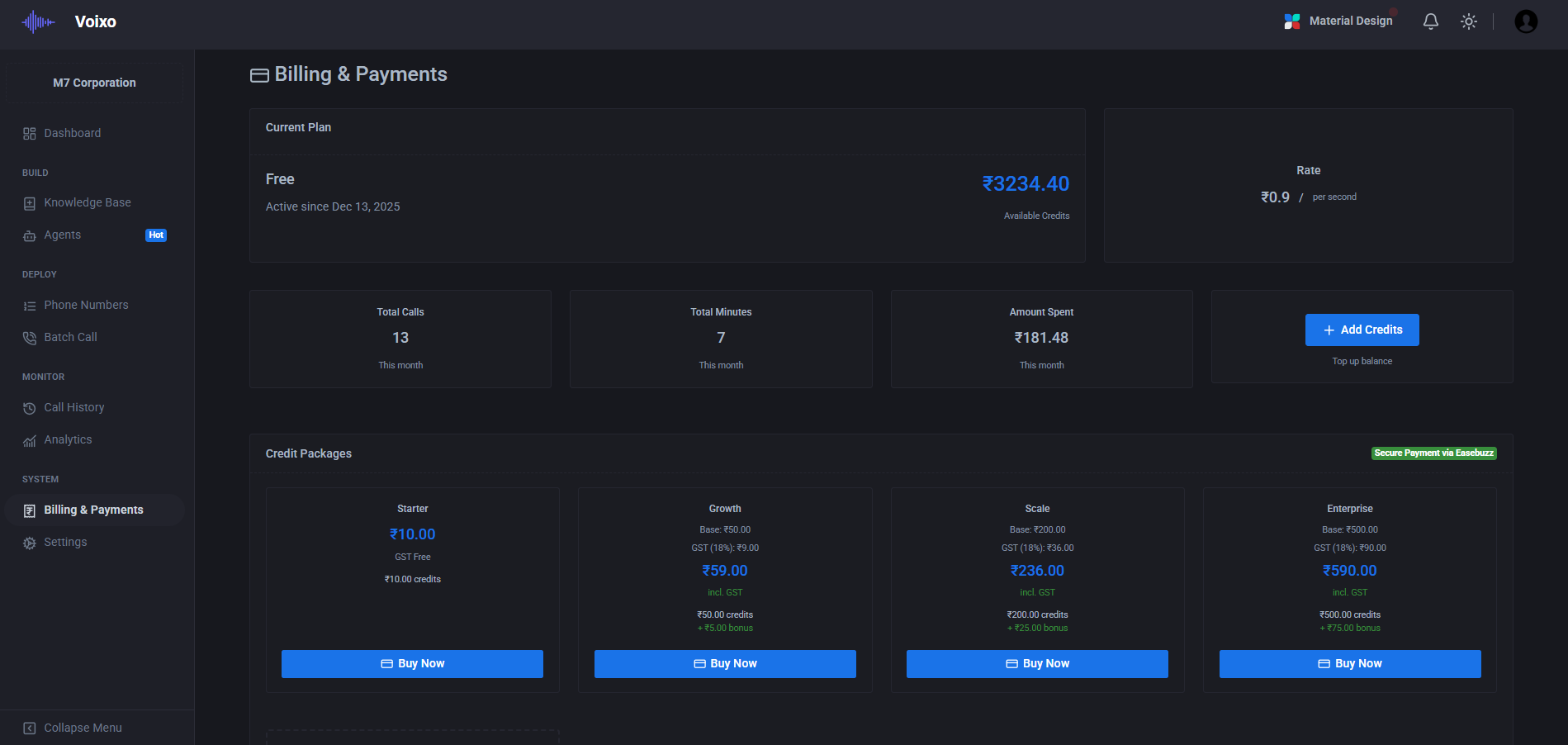
Current Plan management provides comprehensive oversight of your subscription status, including feature availability, usage limits, and renewal scheduling. The system displays your active subscription plan with detailed information about included features, calling capacity, and any special terms or conditions that apply to your account.
Available Credits tracking provides real-time visibility into your calling balance, with detailed breakdowns of credit purchases, usage patterns, and remaining capacity. The system includes intelligent forecasting that predicts when you'll need additional credits based on historical usage patterns and current activity levels, helping you avoid service interruptions and optimize your purchasing decisions.
Rate information provides complete transparency into your calling costs, with detailed per-second pricing that enables precise cost calculation and budget planning. The system displays current rates and provides historical rate information that helps you understand cost trends and plan for future budget requirements.
Usage Summary analytics provide comprehensive insights into your calling activity, including total call volumes, accumulated minutes, and total spending across different time periods. This detailed usage tracking enables cost optimization, budget variance analysis, and strategic planning for scaling your calling operations.
Flexible Credit Packages and Pricing
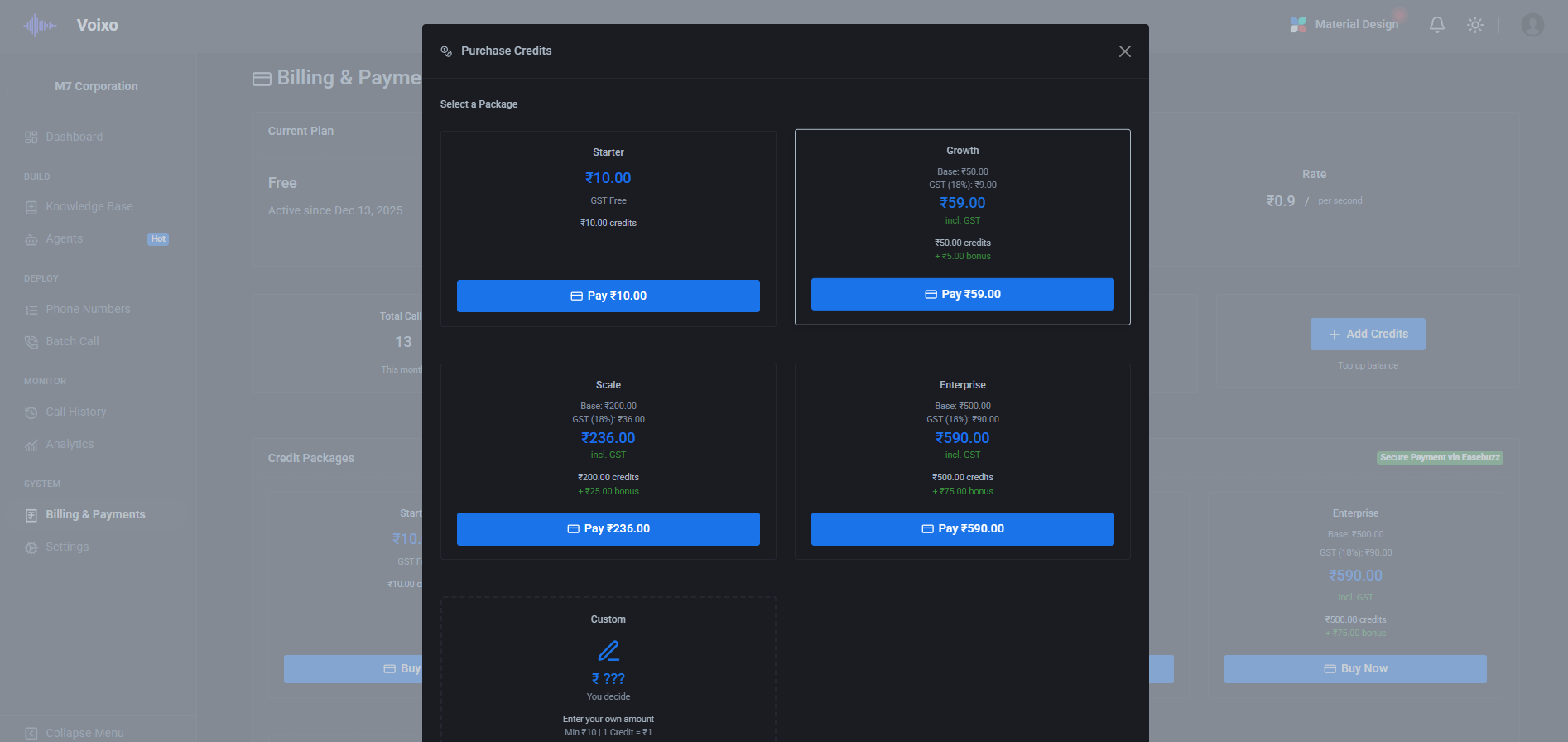
The credit package system offers flexible purchasing options designed to meet diverse business needs and usage patterns. The Starter package provides an affordable entry point for small businesses or pilot programs, while the Growth package includes bonus credits that provide better value for moderate usage levels.
Scale and Enterprise packages are designed for high-volume operations, offering significant bonus credits and volume discounts that reduce per-minute costs for large-scale calling campaigns. Each package is structured to provide optimal value at different usage levels, ensuring that you can find a cost-effective solution regardless of your calling volume requirements.
The bonus credit system rewards larger purchases with additional calling capacity, providing immediate value and encouraging efficient purchasing decisions. These bonus credits are automatically applied to your account and can be used for any calling activities, providing maximum flexibility in how you utilize your communication budget.
Secure Payment Processing
The payment system supports multiple secure payment methods to accommodate diverse business preferences and requirements. UPI integration provides instant, low-cost payments for businesses operating in supported regions, while credit and debit card processing offers global accessibility with enterprise-grade security and fraud protection.
Bank transfer capabilities enable large-volume transactions with reduced processing fees, making them ideal for enterprise customers with significant calling requirements. All payment methods are processed through secure, PCI-compliant systems that protect your financial information and ensure regulatory compliance.
The payment processing system includes automatic receipt generation, detailed transaction histories, and comprehensive audit trails that support accounting and compliance requirements. Integration with major accounting systems enables seamless financial management and reporting.
Financial Transparency and Control
The billing dashboard ensures complete financial transparency with detailed cost breakdowns, usage analytics, and predictive budgeting tools that help you maintain precise control over your communication expenses. Easy credit management capabilities enable quick purchasing decisions and automatic renewal options that ensure uninterrupted service while maintaining cost control and budget compliance.
System Configuration and Integration Management
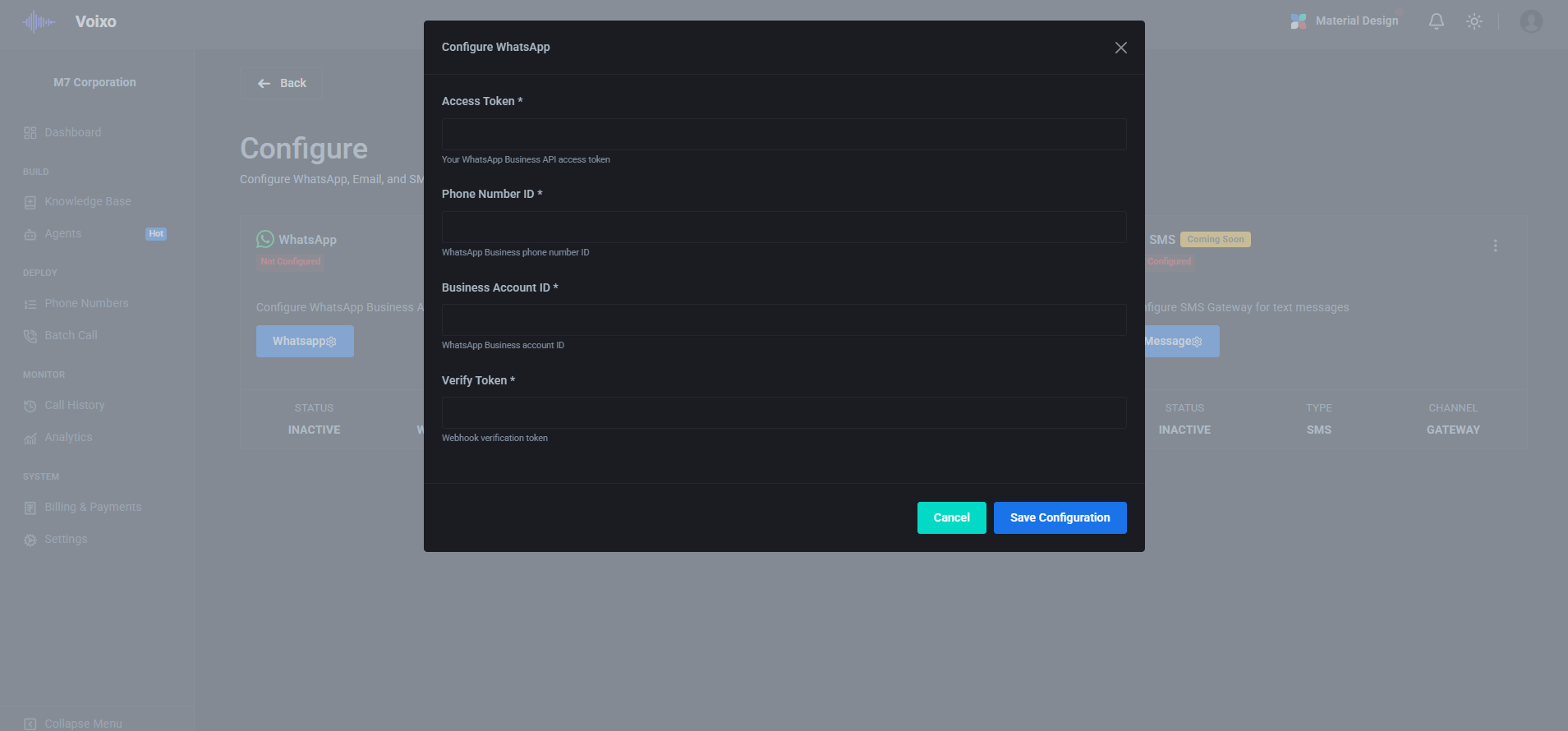
The Configuration system provides comprehensive management of communication channels and integration settings that enable your AI agents to interact with customers across multiple platforms and touchpoints. This sophisticated configuration management platform ensures that all your communication channels are properly integrated, securely configured, and optimally performing to deliver consistent customer experiences regardless of how customers choose to engage with your business.
Built with enterprise-grade security and compliance standards, the configuration system handles complex integration requirements while maintaining user-friendly interfaces that make setup and management accessible to both technical and non-technical users. The platform supports multiple communication protocols, authentication methods, and integration patterns to accommodate diverse business requirements and technical environments.
WhatsApp Business Integration
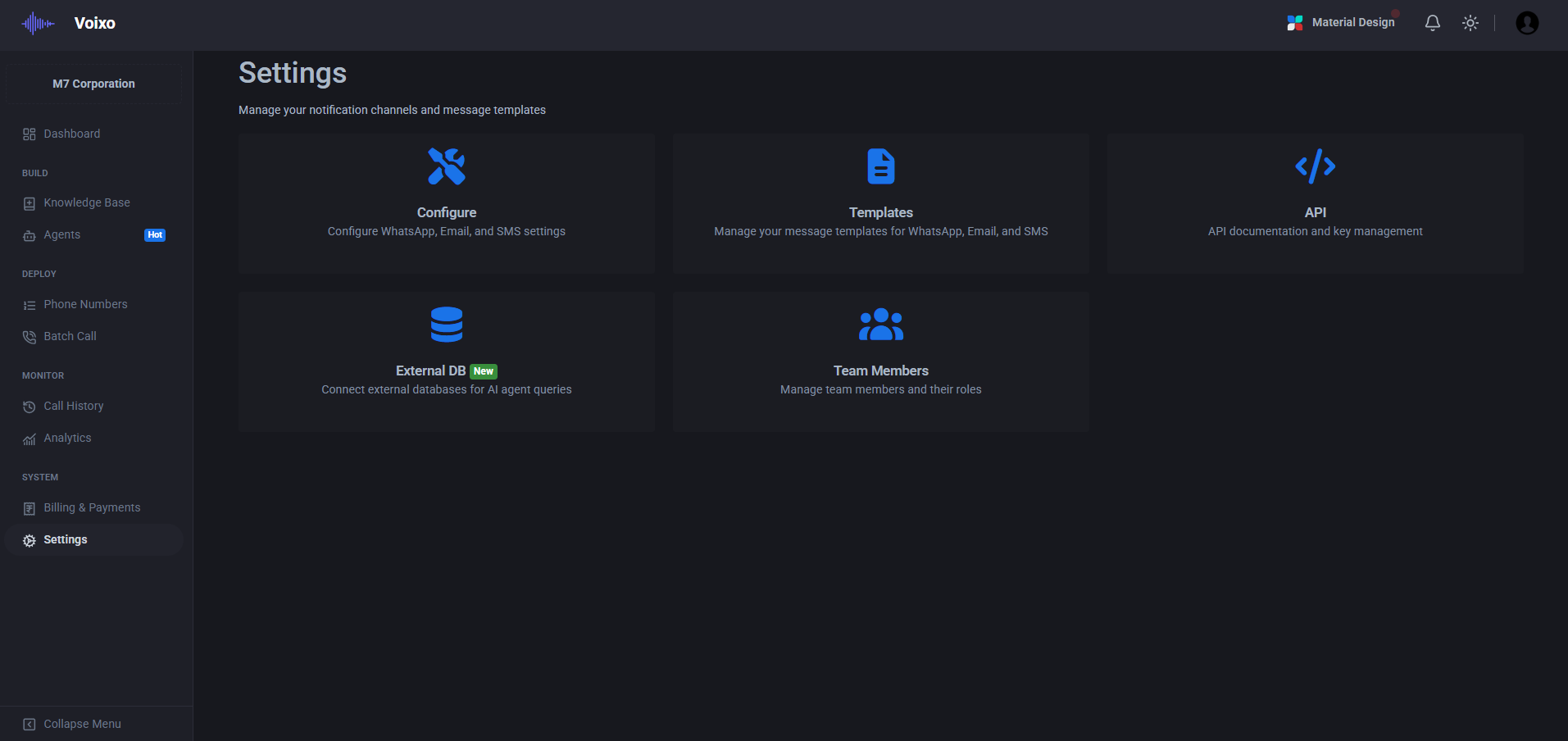
WhatsApp configuration enables your AI agents to engage in rich, interactive conversations through the world's most popular messaging platform. The integration process requires several key authentication components that establish secure, authorized communication between your Voixo system and WhatsApp's business messaging infrastructure.
Access Token configuration establishes the primary authentication credential that authorizes your system to send and receive messages on behalf of your business. This token is securely stored and automatically refreshed to maintain uninterrupted service while protecting your account from unauthorized access.
Phone Number ID and Business Account ID configuration links your WhatsApp Business account to your Voixo system, ensuring that messages are properly attributed and that all business verification and compliance requirements are maintained. These identifiers enable advanced features such as message templates, business profiles, and analytics integration.
Verify Token setup enables secure webhook communication that allows real-time message delivery and status updates. This bidirectional communication ensures that your AI agents can respond immediately to customer messages while maintaining complete conversation context and history across all interactions.
Email System Integration
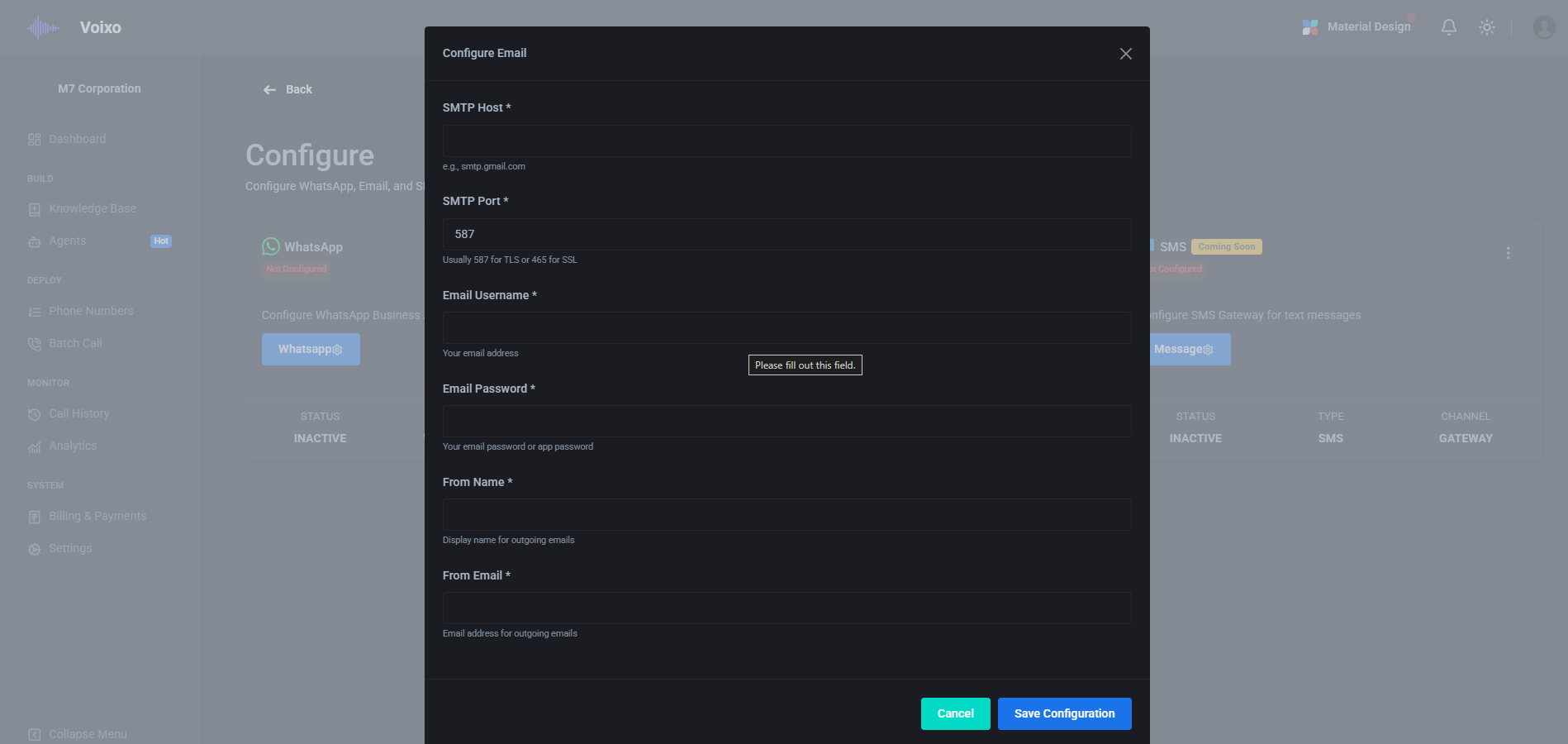
Email configuration enables your AI agents to compose, send, and respond to email communications with the same intelligence and personalization capabilities as voice and messaging interactions. The email integration supports both inbound and outbound email processing, enabling comprehensive customer communication management through this essential business channel.
SMTP host and port configuration establishes the connection to your email service provider, whether you're using enterprise email systems like Microsoft Exchange or Google Workspace, or specialized email service providers. The system supports both standard and encrypted connections to ensure security and compatibility with your existing email infrastructure.
Email username and app password configuration provides the authentication credentials needed for secure email sending and receiving. The system supports modern authentication methods including OAuth and app-specific passwords that provide enhanced security while maintaining ease of use and management.
Sender identity configuration ensures that emails sent by your AI agents properly represent your business brand and comply with email authentication standards such as SPF, DKIM, and DMARC. This configuration is essential for email deliverability and helps prevent your messages from being flagged as spam or phishing attempts.
External Database Integration
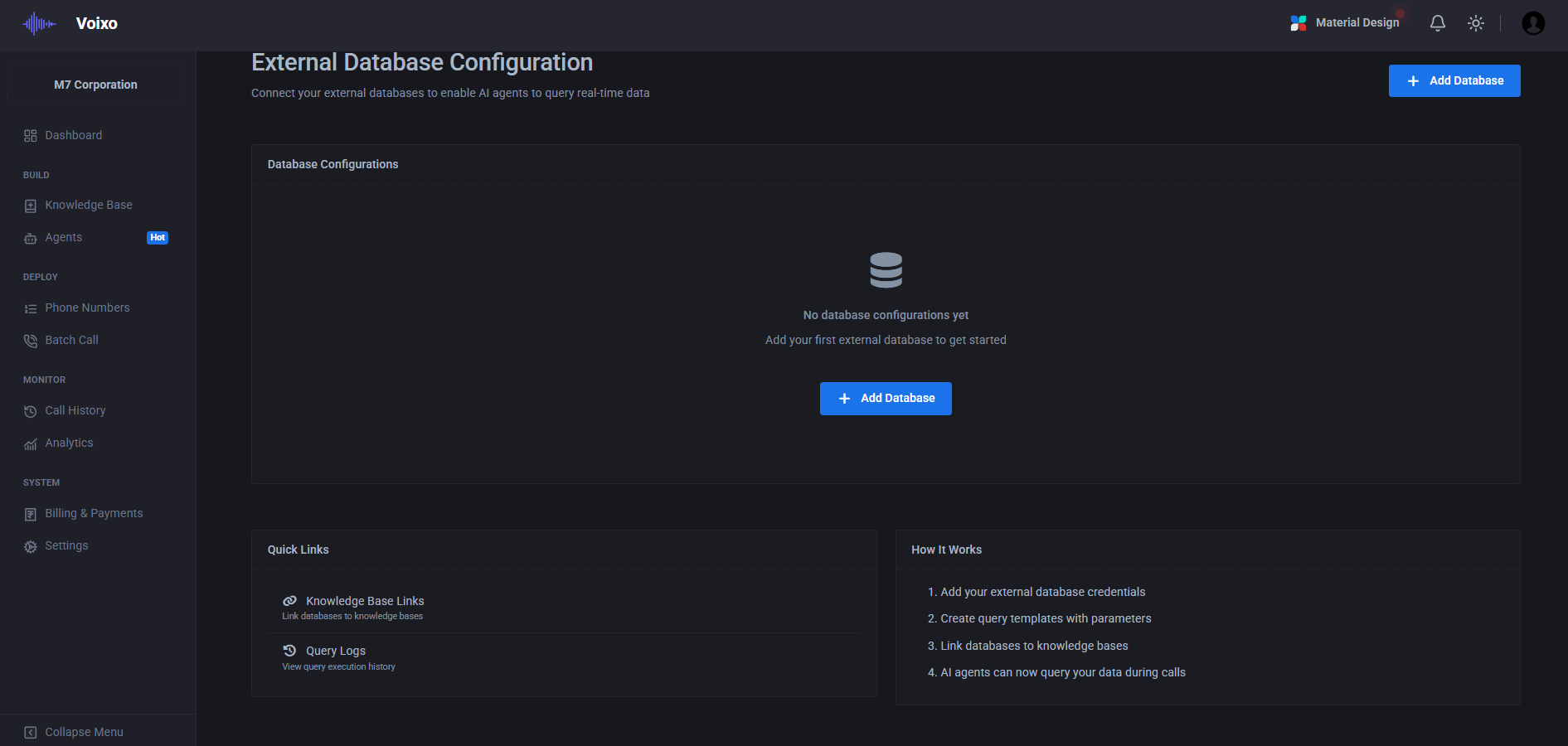
External Database integration enables your AI agents to access and interact with your existing business databases, CRM systems, and data repositories in real-time during customer conversations. This powerful integration capability allows agents to retrieve customer information, update records, perform lookups, and execute complex data operations that enhance the quality and effectiveness of customer interactions.
The database integration system supports multiple database types including MySQL, PostgreSQL, Microsoft SQL Server, Oracle, MongoDB, and other popular database platforms. Connection configuration includes secure authentication methods, SSL encryption, connection pooling, and failover capabilities that ensure reliable and secure access to your critical business data.
Database Host and Port configuration establishes the network connection to your database server, supporting both local and cloud-hosted database instances. The system includes advanced connection management features such as connection pooling, timeout handling, and automatic reconnection capabilities that ensure consistent database availability even during network fluctuations or maintenance windows.
Authentication and Security settings provide comprehensive access control through username and password authentication, API keys, or advanced authentication methods such as OAuth and certificate-based authentication. All database connections are encrypted using industry-standard SSL/TLS protocols, and the system supports role-based access control to ensure that AI agents can only access the data they need for their specific functions.
Query Configuration and Data Mapping enable you to define specific database queries, stored procedures, and data transformation rules that your AI agents can execute during conversations. The system includes a visual query builder, parameterized query support, and real-time query testing capabilities that make it easy to configure complex data operations without requiring extensive database expertise.
Real-time Data Synchronization ensures that your AI agents always have access to the most current customer information and business data. The system supports both read and write operations, enabling agents to not only retrieve information but also update customer records, log interaction details, and trigger business processes based on conversation outcomes.
SMS Integration Platform Coming Soon
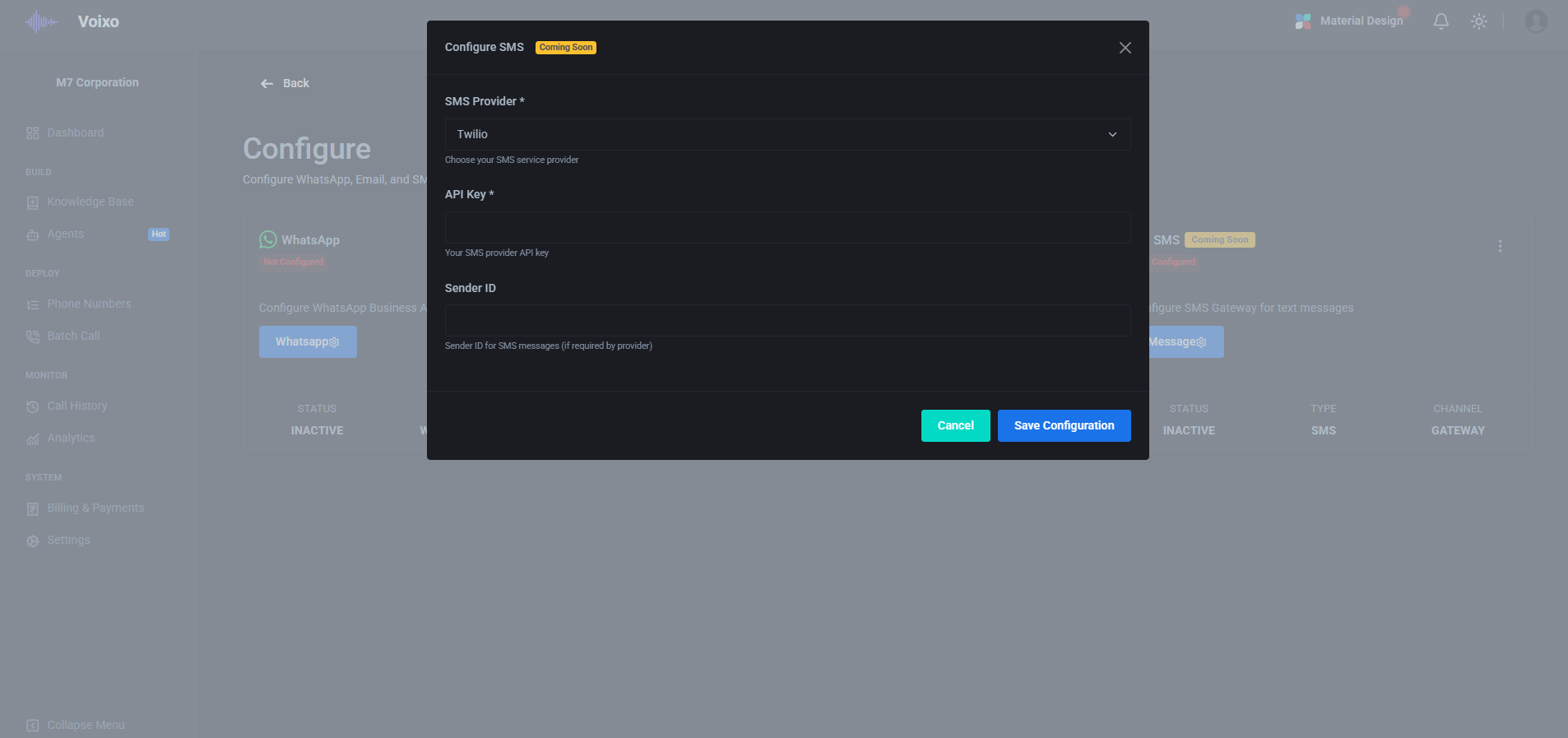
SMS integration capabilities are currently in development and will provide comprehensive text messaging functionality that enables your AI agents to engage customers through this immediate and widely accessible communication channel. The SMS platform will support both promotional and transactional messaging with advanced features including delivery tracking, opt-out management, and compliance with telecommunications regulations.
The upcoming SMS integration will include support for multiple SMS gateway providers, international messaging capabilities, and advanced features such as multimedia messaging, link tracking, and automated response handling. This will complete the multi-channel communication ecosystem, enabling your AI agents to reach customers through their preferred communication methods.
Message Templates and Communication Automation
Message Templates provide the foundation for consistent, professional, and personalized communication across all supported channels, enabling your AI agents to deliver branded messaging that maintains your organization's voice and style while adapting to individual customer needs and contexts. This comprehensive template management system supports dynamic content generation, multi-language capabilities, and sophisticated personalization that ensures every customer interaction reflects your brand standards and communication objectives.
The template system is designed to balance consistency with flexibility, providing structured messaging frameworks that ensure compliance and brand alignment while allowing for dynamic adaptation based on customer data, conversation context, and real-time business requirements. This approach enables scalable communication that maintains the personal touch customers expect while ensuring operational efficiency and regulatory compliance.
WhatsApp Template Management
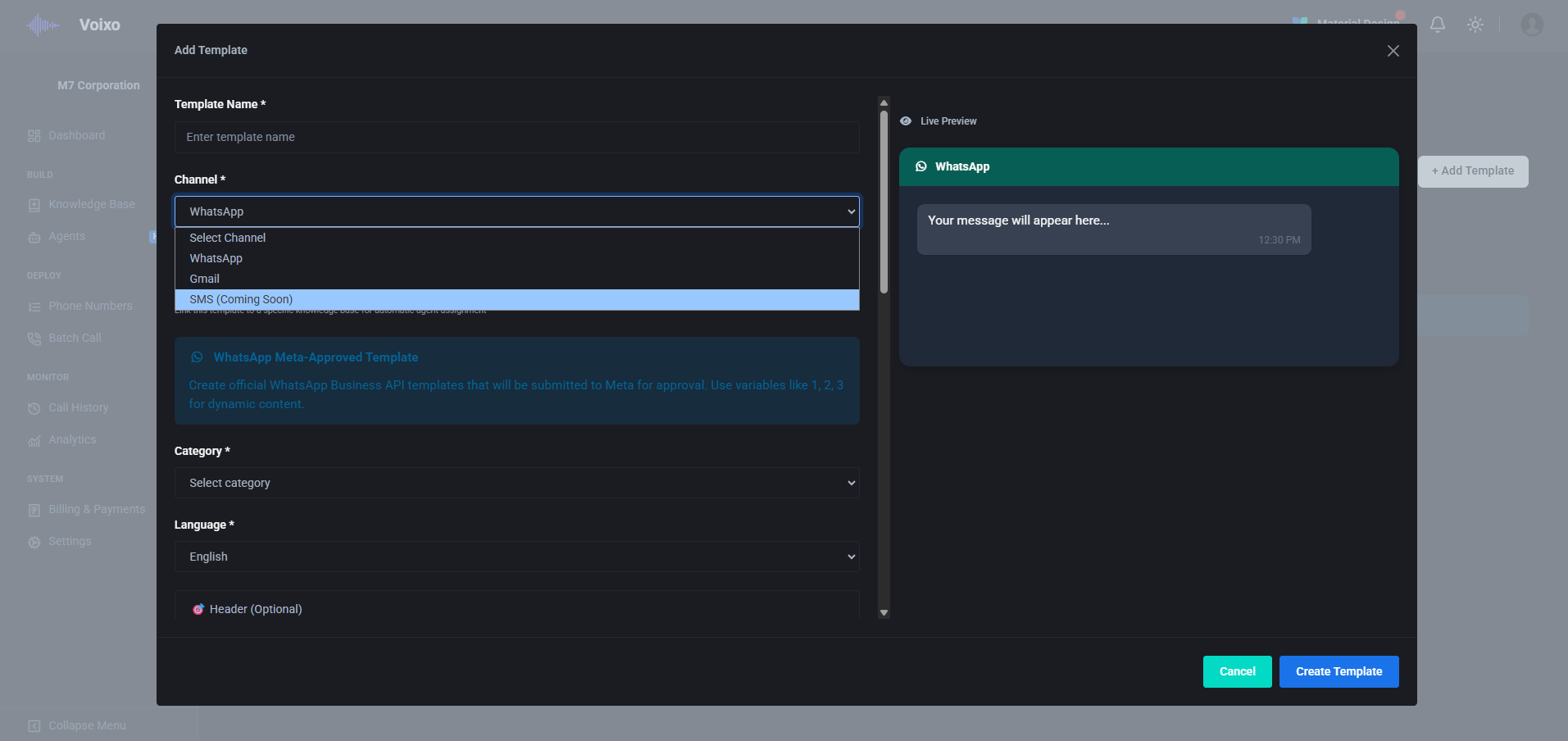
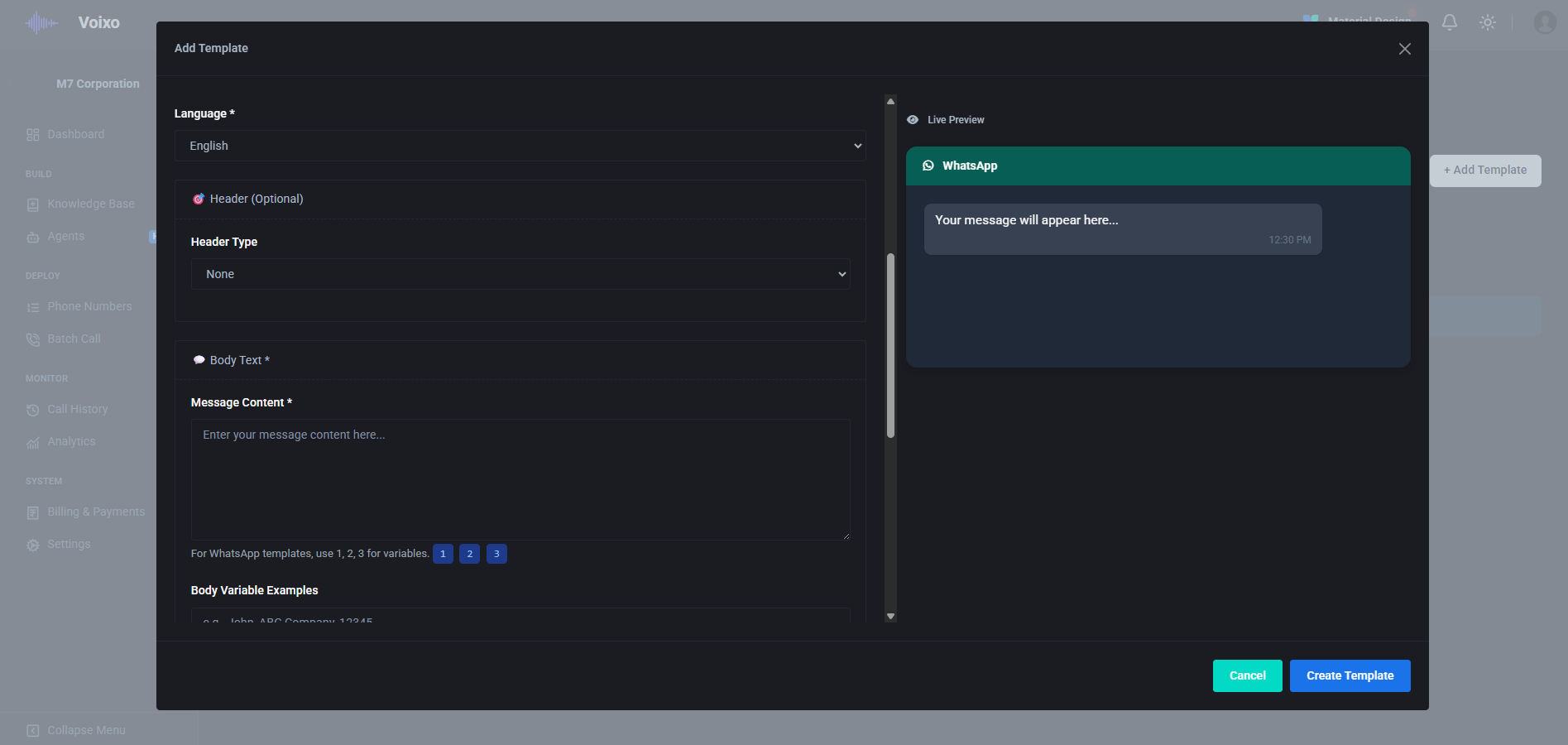
WhatsApp templates enable sophisticated messaging capabilities that support rich media, interactive elements, and dynamic personalization while maintaining compliance with WhatsApp Business policies and regulations. The template system supports dynamic variables that can be populated with customer-specific information such as names, account details, appointment times, or any other relevant data from your business systems.
Template synchronization with Meta's WhatsApp Business platform ensures that your templates are properly approved and compliant with current messaging policies. This integration automatically manages the approval process, tracks template status, and provides notifications when templates require updates or re-approval.
Advanced template features include support for multimedia content, interactive buttons, quick reply options, and structured messaging formats that enhance customer engagement and provide intuitive interaction options. The system can automatically select the most appropriate template based on conversation context, customer preferences, and business objectives.
Email Template System
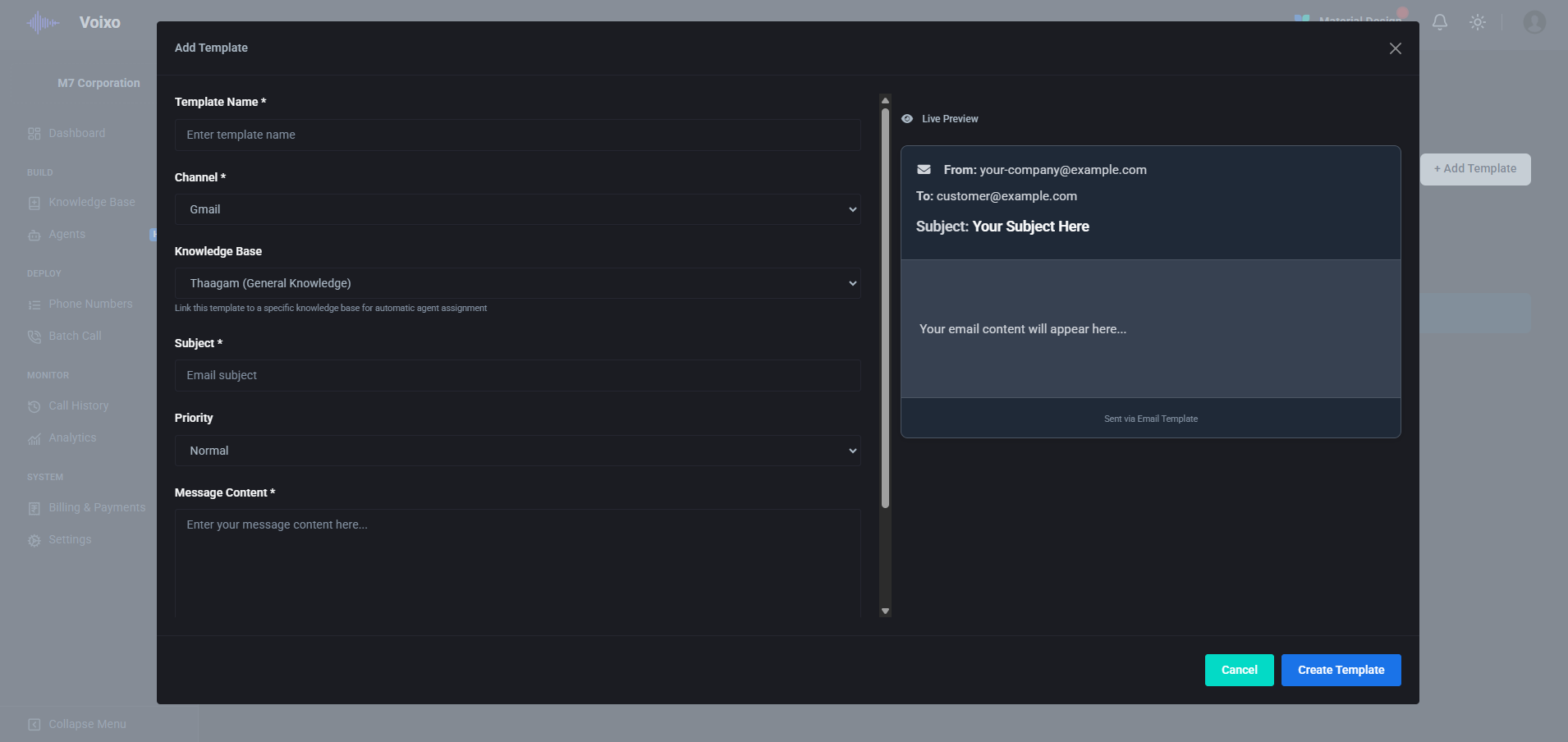
Email templates provide comprehensive support for professional business correspondence with sophisticated formatting, personalization, and automation capabilities. The template system includes support for HTML formatting, embedded images, attachments, and responsive design that ensures optimal presentation across all email clients and devices.
Subject line optimization includes dynamic generation based on email content, customer data, and business context to maximize open rates and engagement. Priority settings enable appropriate handling of different message types, from urgent notifications to routine communications, ensuring that important messages receive appropriate attention and delivery priority.
Message body templates support rich text formatting, dynamic content insertion, and personalization variables that create engaging, relevant communications tailored to individual recipients. The system includes advanced features such as A/B testing capabilities, delivery optimization, and comprehensive analytics that help you optimize email performance and engagement rates.
SMS Template Platform Coming Soon
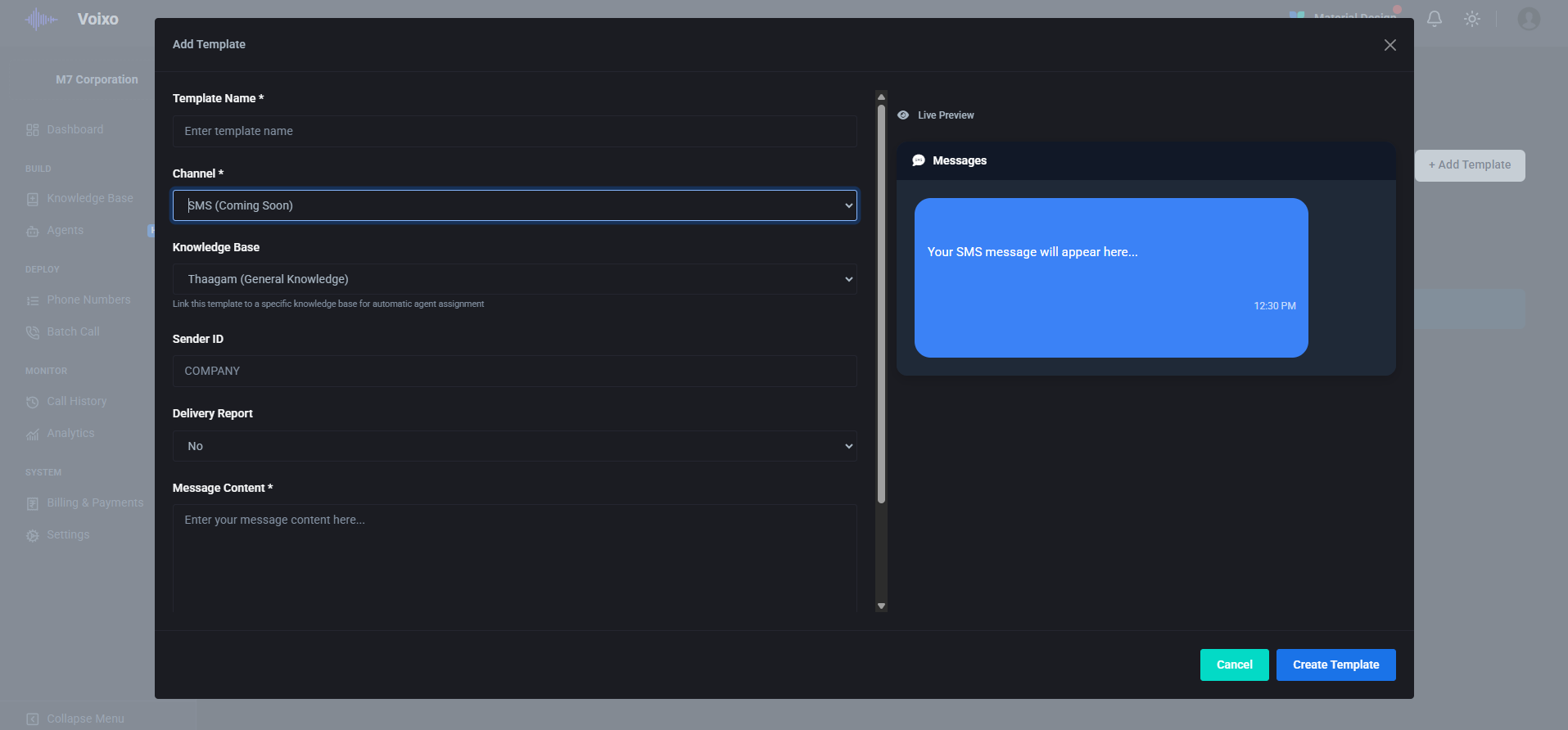
SMS templates are currently in development and will provide comprehensive text messaging capabilities optimized for the unique constraints and opportunities of SMS communication. The SMS template system will include character count optimization, link shortening, and compliance features that ensure effective communication within SMS limitations while maintaining message clarity and impact.
The upcoming SMS template platform will support advanced features including multimedia messaging, delivery tracking, opt-out management, and integration with customer preference systems. This will complete the multi-channel template ecosystem, enabling consistent messaging across all communication channels while respecting the unique characteristics and requirements of each platform.
Unified Communication Excellence
The template system ensures consistent, personalized, and automated communication across all supported channels while maintaining the flexibility to adapt messaging based on customer preferences, conversation context, and business objectives. This comprehensive approach to message management enables scalable communication that maintains quality, compliance, and brand consistency while providing the personalization and relevance that customers expect from modern business interactions.